Auto-update deliveries with ShippyPro
Connect the ShippyPro tracking webhook so COD orders flip to “delivered” on their own and you get alerted about delivery problems.
Updated on June 20, 2026
When you ship a cash-on-delivery (COD) order with ShippyPro, the carrier updates the parcel status as it moves (in transit, delivered, failed attempt…). The tracking webhook is the link that lets ShippyPro notify RoyLead on every status change: the order then flips to “delivered” on its own and you get an alert if there's a delivery problem, without checking the tracking by hand.
💡 It's optional: without the webhook you still ship fine, but you'll have to mark “delivered” yourself from the tracking. It takes 2 minutes and you set it up only once.
Before you start
You need your ShippyPro account already connected to RoyLead (your API key saved under Team settings → Shipping). If you haven't done that yet, connect it first: the “Tracking webhook” box only appears after you save the API key.
Copy the 3 values from RoyLead
Go to Team settings → Shipping and open the “Tracking webhook” box. You'll find three values, each with its own copy button:
- Webhook URL — the address ShippyPro will send updates to.
- Custom header name —
x-roylead-token. - Custom header value (secret) — your private key.
🔒 The header value is a secret: it's the “signature” that proves to RoyLead the call really comes from your ShippyPro. Don't share it.
Open Webhooks in ShippyPro
In your ShippyPro panel go to Integration → API: the Webhook section is at the bottom of the page. Click Add webhook.
Create the webhook
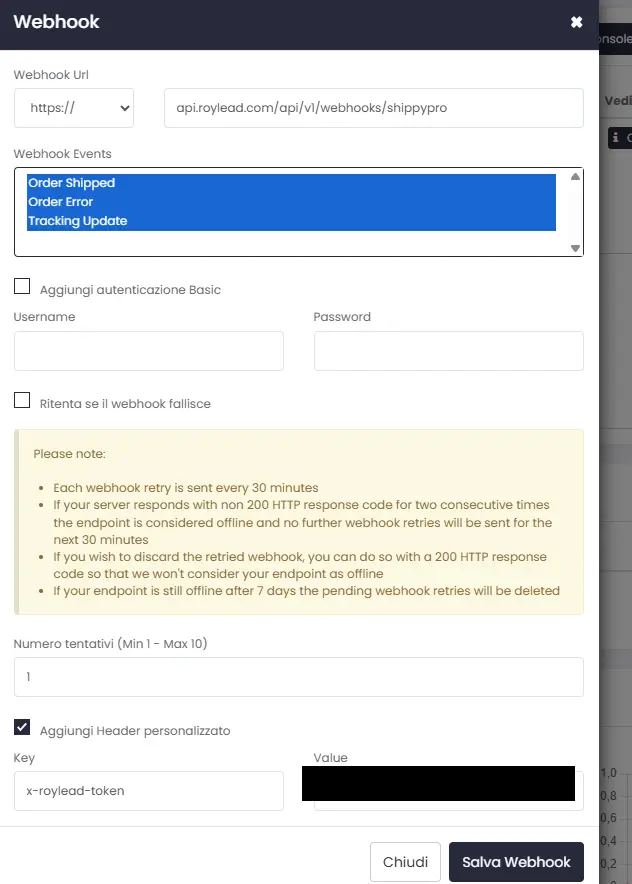
Fill in the dialog as shown in the image:
- Webhook Url — set the dropdown to
https://and paste the Webhook URL copied from RoyLead (the part afterhttps://). - Webhook Events — select Tracking Update (the one that updates deliveries).
- Add Basic authentication — leave it unchecked (Username and Password empty).
- Add custom header — tick it, then fill in:
- Key:
x-roylead-token - Value: the header value (secret) copied from RoyLead — paste it in full, it must match exactly.
- Key:
- Click Save Webhook.
⚠️ The header value must be identical character by character to the one in RoyLead. Use the “copy” button in the RoyLead box instead of typing it by hand.
Verify
From then on it's all automatic. On the first real shipment you can check the incoming calls from the “View Webhook Log” button in ShippyPro: when the carrier marks the delivery, the order in RoyLead flips to “delivered” on its own.
Ready to put this into practice?
Create your RoyLead account and start in minutes.