Choose your AI call voices
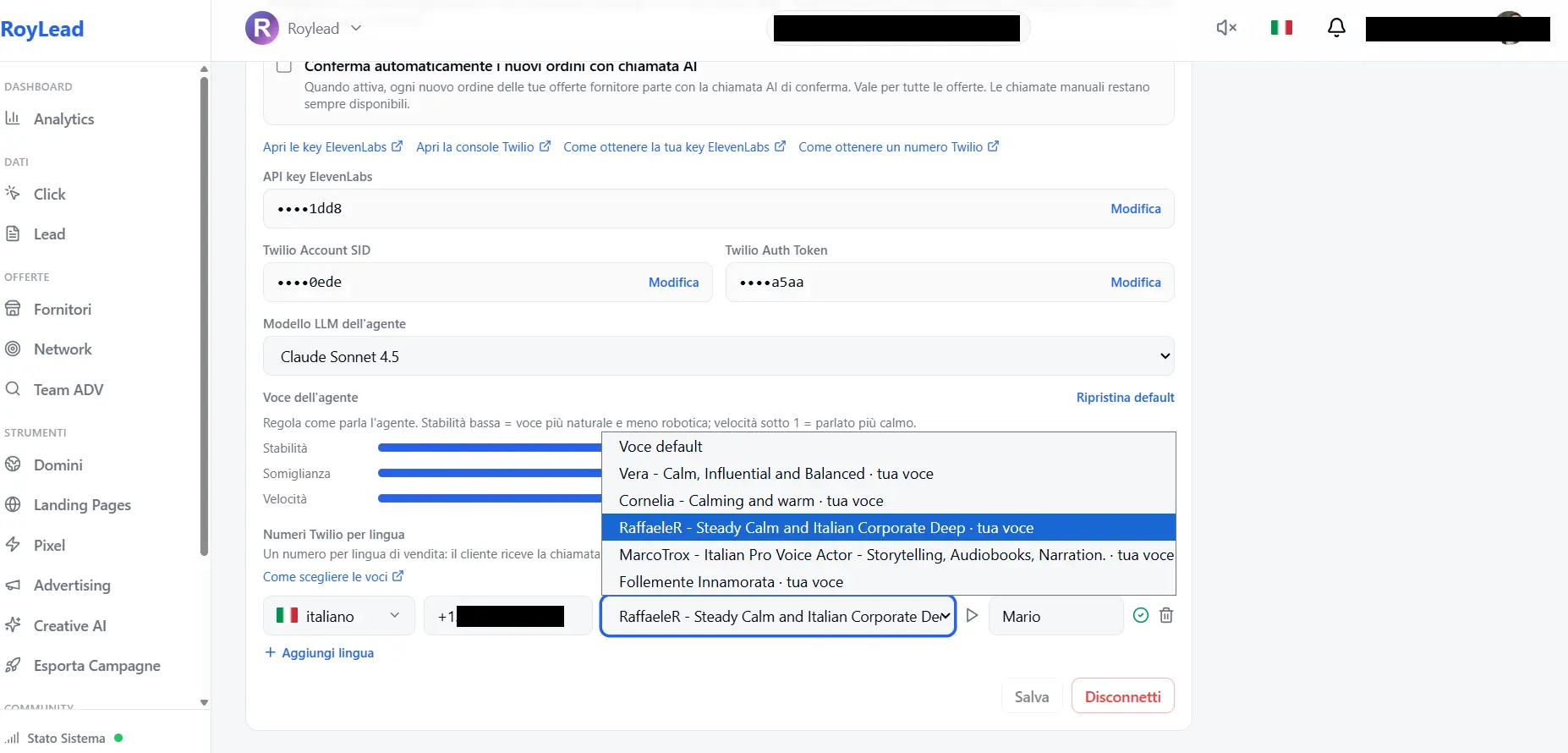
The voices in RoyLead's menu are the ones in your ElevenLabs "My Voices". Add (bookmark) the voices you want and they show up here, filtered by the number's language.
Updated on June 21, 2026
The voices you see under AI Tools → Twilio numbers per language aren't picked by RoyLead: they're the voices in your ElevenLabs "My Voices". So you decide which voices to use — just add them to your account.
Add a voice
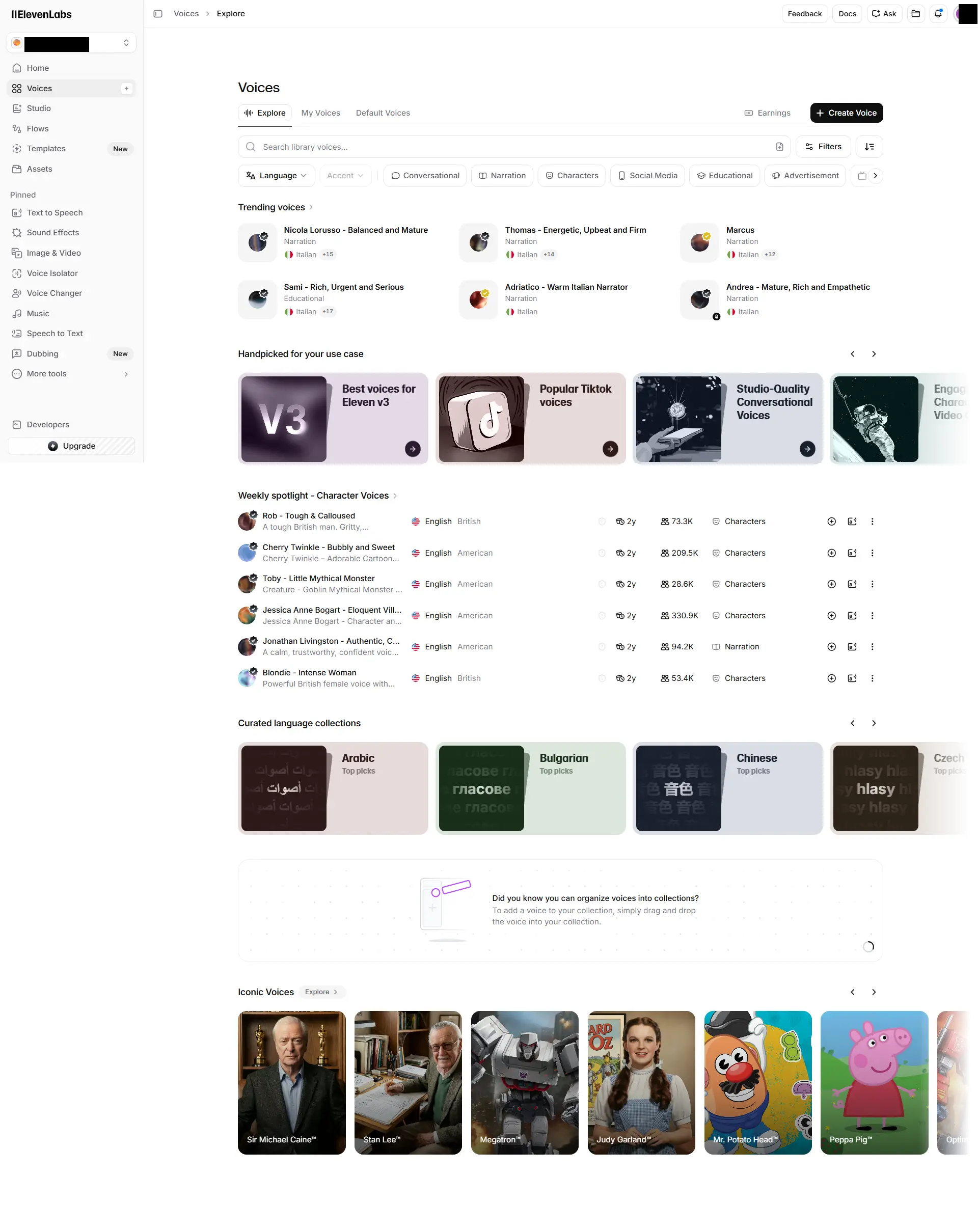
- Go to elevenlabs.io → Voices → Explore (the voice library).
- Filter by language (e.g. Italian) and listen to the previews.
- On a voice you like, click "Add to My Voices" (you bookmark it in your account).
- Back in RoyLead, reload the page (Ctrl+F5): the voice appears in the menu.
How the RoyLead menu works
- It shows only the voices in your My Voices (the ones you added). The default English voices and the "professional" ones you didn't add don't appear.
- It's filtered by the number's language: on the Italian number you only see Italian voices, on the French one only French. One language → only that language's voices.
💡 Tip: add 2-3 good voices per language (e.g. one male, one female). Try them with "Test me" in the offer dialog and keep the one that sounds most natural.
Remove a voice
ElevenLabs → Voices → My Voices → ⋮ menu on the voice → "Remove from My Voices". After a Ctrl+F5 it disappears from the RoyLead menu too.
Ready to put this into practice?
Create your RoyLead account and start in minutes.