Google Maps API Key
Enable address autocomplete on your landing page forms.
Updated on May 31, 2026
With this feature, when a visitor starts typing their address in your landing page form, Google suggestions appear and they can pick the right one with a tap. Fewer typos, cleaner data, faster completion → more valid leads.
💡 Time required: ~10 minutes. A credit card is required to activate the Google account, but you almost certainly won't pay anything (see the "How much does it cost" section).
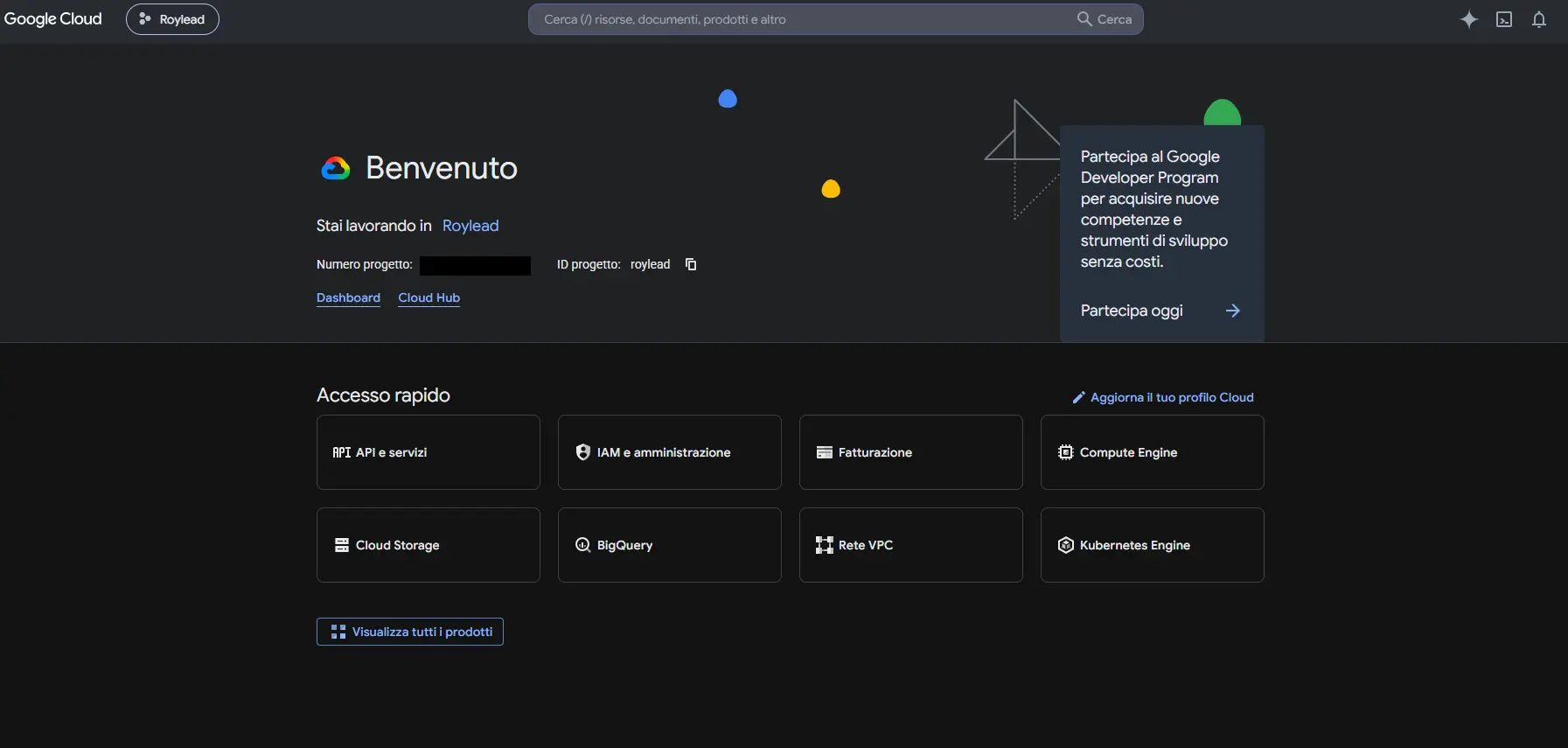
Open the Google Cloud Console
Open the Google Cloud Console and sign in with a Google account (a normal Gmail account is fine).
💡 Tip: use a dedicated business account, not your personal one, to keep things tidy.
Create a project
A "project" is the container that holds your key and settings.
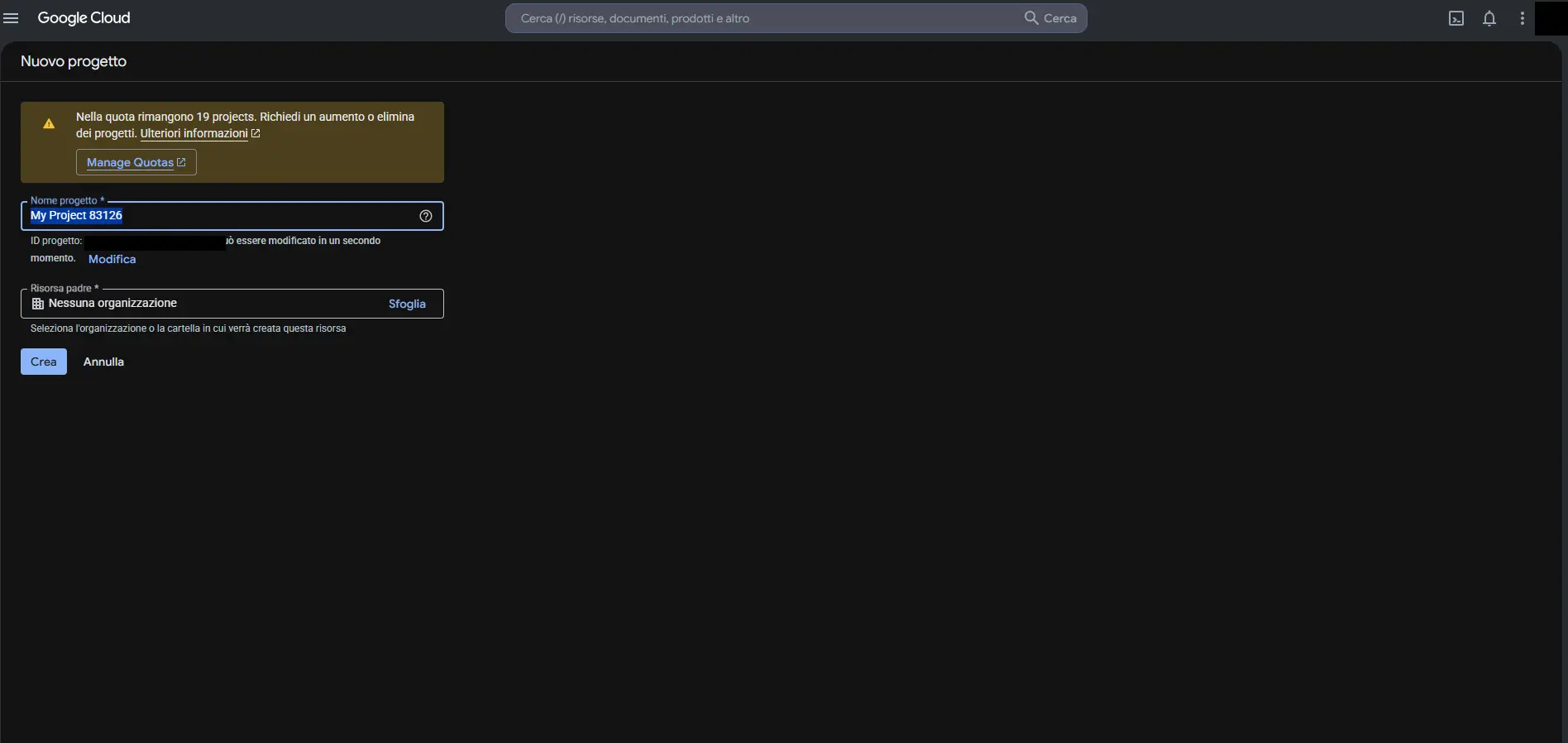
- At the top, next to the "Google Cloud" logo, click the project dropdown.
- Click New project.
- Give it a recognizable name, e.g.
RoyLead Maps, and click Create. - Make sure the new project is selected at the top.
Enable billing
Google requires a linked card even to use the free tier. Without active billing you'll see an error or the "For development purposes only" watermark.
- In the left menu (☰), go to Billing.
- Click Link a billing account.
- Enter your details and a card, then confirm.
🔒 Adding a card doesn't mean you'll be charged. Google only bills if you exceed the monthly free allowance, which is very unlikely for a landing page. Below, I'll show you how to set a budget alert.
Enable the required APIs
You need to turn on the Google services that address autocomplete uses.
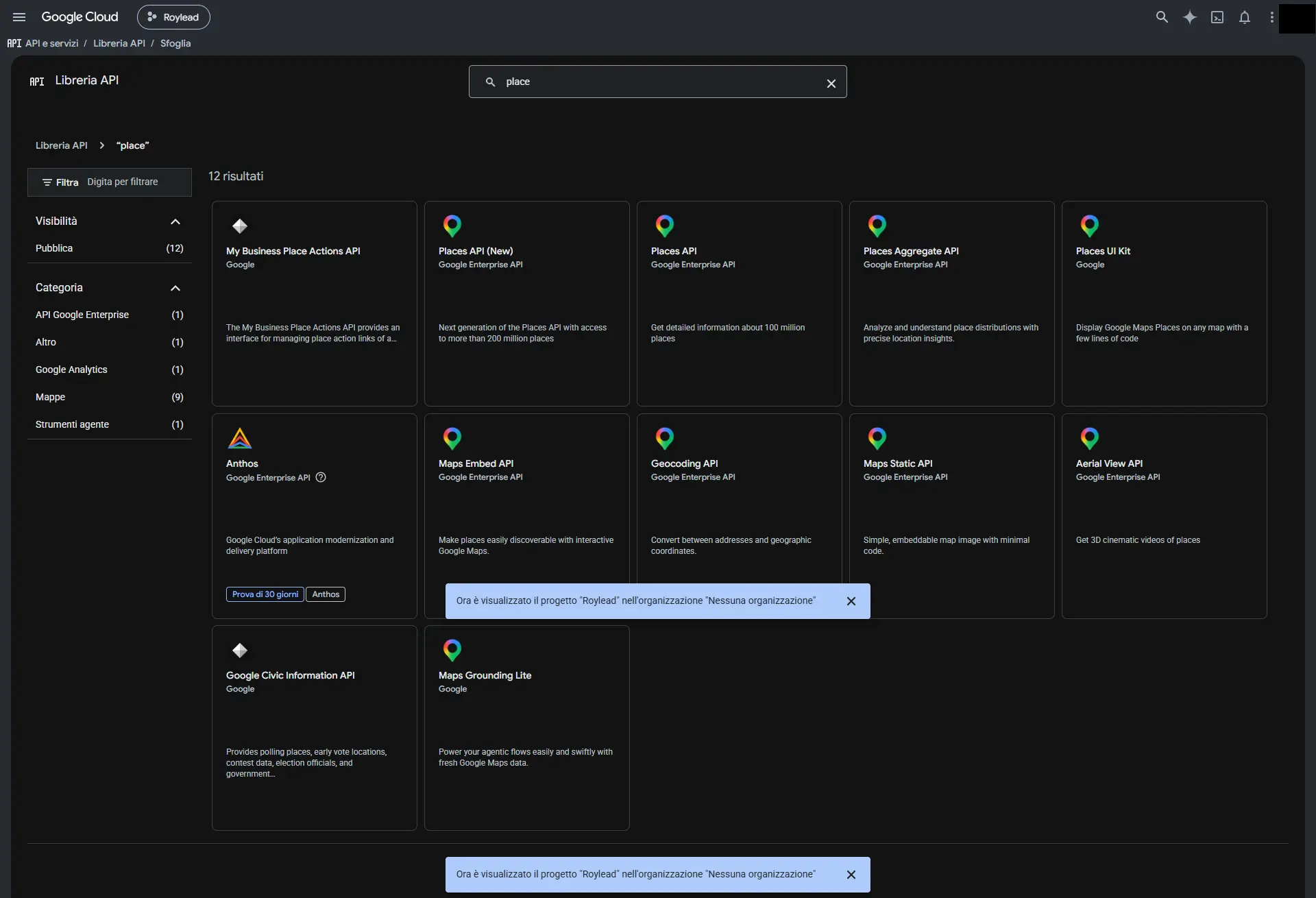
- In the menu (☰), go to APIs & Services → Library.
- Search and enable these three APIs one by one (open each and click Enable):
- Maps JavaScript API
- Places API
- Places API (New)
ℹ️ Enabling an API costs nothing: you only pay based on actual usage. Enable all three to avoid "This API is not enabled" errors.
Create the API key
- In the menu (☰), go to APIs & Services → Credentials.
- Click + Create credentials → API key.
- Google generates the key: a long string like
AIzaSyB3xK...d9F2qZ. - Copy it (you'll paste it into RoyLead in Step 7). Don't close yet: let's restrict it first.
⚠️ Never share this key in public chats, screenshots or repositories. Even after restricting it, treat it like a password.
Restrict the key (important for security)
The key ends up in the landing page code, so it's visible to anyone viewing the source. To prevent someone from copying and using it at your expense, restrict it. Open the key from the Credentials page (pencil icon) and set two restrictions.
6a — HTTP referrers (which sites can use it)
- Under Application restrictions, select HTTP referrers (web sites).
- Add the URLs of the domain where you'll use the key (both lines):
https://yourdomain.com/*
https://*.yourdomain.com/*
Replace yourdomain.com with your domain. Multiple domains? Better to create a separate key per domain (in RoyLead the key is per-domain).
6b — API restrictions
- Under API restrictions, select Restrict key.
- Check only: Maps JavaScript API, Places API, Places API (New).
- Save.
⚠️ Restrictions can take up to 5 minutes to take effect. If you see an error right after, wait a few minutes and retry.
Paste the key into RoyLead
- Open the domain settings in RoyLead.
- Select the domain where you want autocomplete enabled.
- Paste the key into the Google Maps API Key field and save.
Verify it works
- Open a landing page published on that domain.
- In the form, start typing an address (e.g. "Roma St…").
- Google suggestions should appear: pick one and the field fills in. ✅
If no suggestions appear, see the "Troubleshooting" section.
How much does it cost
Google offers a monthly free usage allowance for Maps/Places APIs. For typical landing page volumes you almost always stay free and pay €0. The card is just a guarantee and covers any overage.
To stay safe, set a budget alert:
- Menu (☰) → Billing → Budgets & alerts.
- Create budget, low threshold (e.g. €5), email alert.
💳 Places Autocomplete makes a request on every keystroke: 1 lead = a handful of requests, not just one. Even so, you'd need several thousand form fills per month to actually pay.
Troubleshooting
| What you see | Cause | Fix |
|---|---|---|
| No suggestions | API not enabled or key not saved | Re-check Step 4 and Step 7 |
RefererNotAllowedMapError | Domain not in referrers | Step 6a: add the domain URLs |
ApiNotActivatedMapError | An API is missing | Step 4: enable the three APIs |
| "For development purposes only" watermark | Billing not active | Step 3 |
This API key is not authorized | API restriction too tight | Step 6b: check the three APIs |
| Worked, then stopped | You just changed restrictions | Wait ~5 minutes |
💡 For debugging: open the landing page, press
F12→ Console tab. Google Maps errors show up there with the exact name: look it up in the table above.
Best practices
- 🔑 One key per domain (in RoyLead the key is per-domain): if one leaks, you only block that one.
- 🔒 Always restrict the key (Step 6): an unrestricted key is one someone will use at your expense.
- 🚨 Keep the budget alert active.
Ready to put this into practice?
Create your RoyLead account and start in minutes.