Set up Agent AI calls (ElevenLabs + Twilio)
Create the ElevenLabs API key with the right permissions, add a number and a voice per language, click Connect — RoyLead provisions the agent and webhook in your account.
Updated on June 19, 2026
AI order-confirmation calls run on your own ElevenLabs workspace and your own Twilio numbers. You paste your keys, set one number (and voice) per sales language, then click Connect — RoyLead provisions the voice agent and the post-call webhook for you.
1. The ElevenLabs API key (3 permissions)
-
Go to elevenlabs.io, sign up and upgrade to a paid plan (Conversational AI + telephony aren't on the free tier).
-
Developers → API Keys → Create API Key.
-
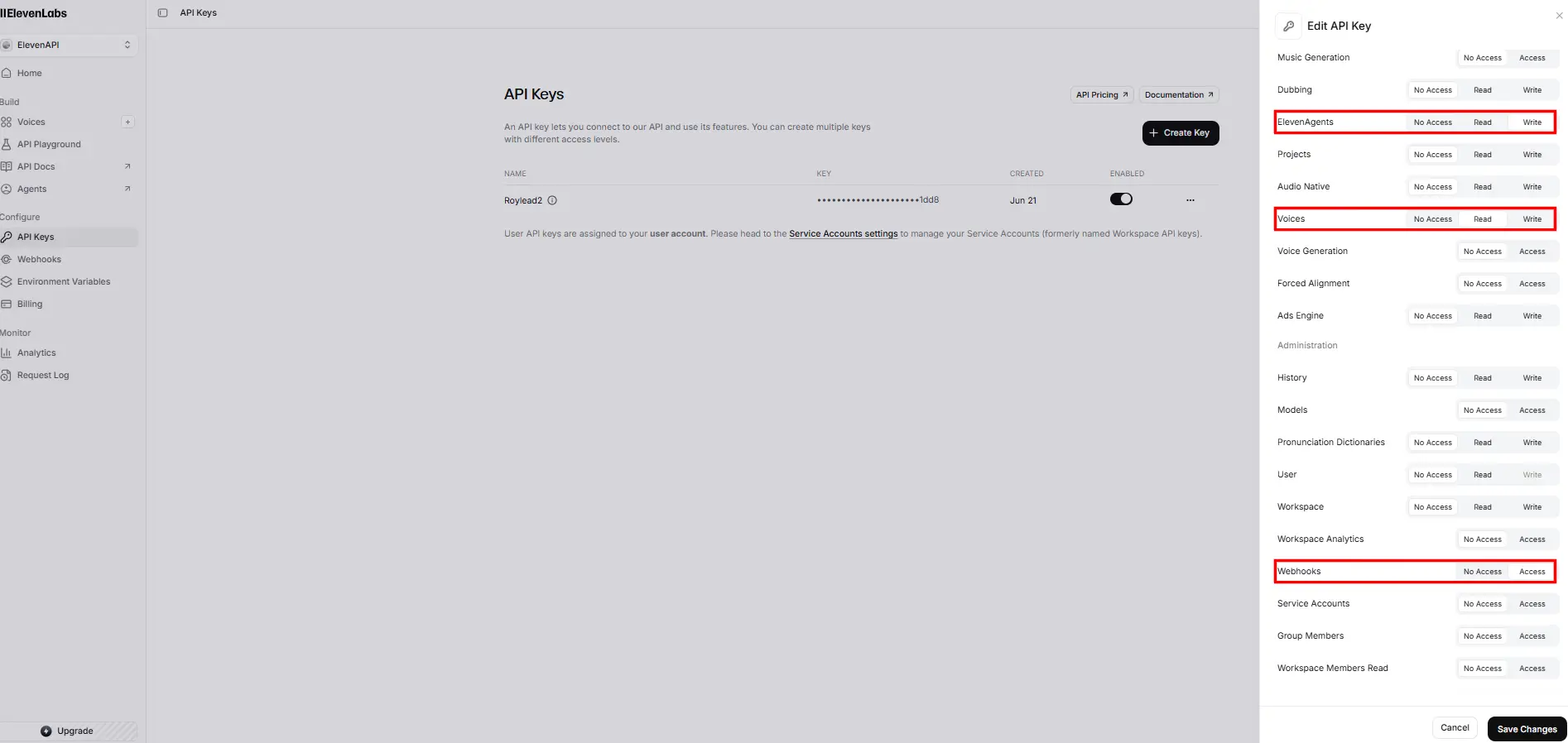
Keep the key restricted and enable THREE permissions (scroll the list to find them):
- ElevenAgents → Write — creates and configures the voice agent;
- Webhooks → Access (Has access) — registers the webhook that sends us the call outcome;
- Voices → Read — loads your voices into the dropdown (premium included).
Leave everything else on No Access. If one is missing, Connect will show a "missing permission" error.
-
Create Key and copy it (starts with
sk_) — shown only once.
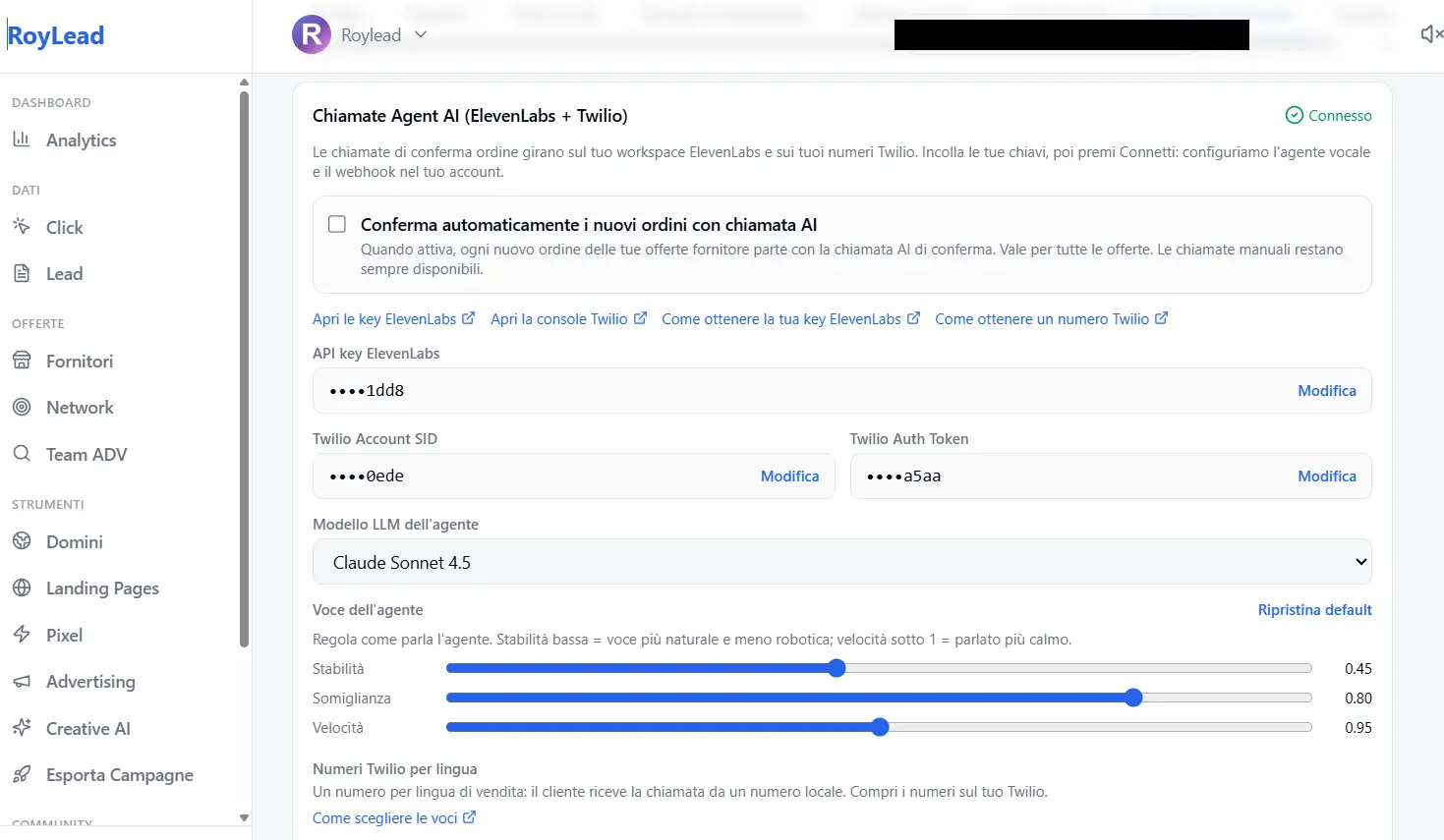
2. In RoyLead — Settings → AI Tools → Agent AI
-
Paste ElevenLabs API key, Twilio Account SID and Twilio Auth Token.
-
Under Twilio numbers by language, for each sales language add:
- the Twilio number the call goes out from (buy it on your own Twilio; a local number per country gets far more answers);
- the voice from the dropdown (your ElevenLabs voices). "Default voice" is fine to start.
At runtime the system picks number+voice automatically based on the lead's language (fallback: the first one configured).
-
Click Save, then Connect (in that order). When the badge shows Connected (green), you're ready.
3. Test before going live
Open a supplier offer → enable "Confirm order via AI call" → enter your number (verified on Twilio) → Test call: we call you with sample data so you can hear voice and script without touching real leads.
The script (optional, per offer)
The script is per offer and optional: leave it empty to use the RoyLead base script — the variables (product, price, quantity, name, address) fill in automatically from the order. One base script works for all offers; customize it only if you want a different tone for a specific offer.
💡 Good to know
- Keys are stored encrypted; to rotate, create a new key on ElevenLabs and click Connect again.
- The number in AI Tools is the one the call goes out from; the number you enter in the offer dialog ("Test call") is your phone where you receive the test. Two different things.
- On a Twilio trial account you can only call verified numbers: fine for testing, real customers need an upgrade.
Ready to put this into practice?
Create your RoyLead account and start in minutes.