Create the Cloudflare token to publish landings
Create a Cloudflare API token with the 4 right permissions (Workers + DNS + Zone) and add it to RoyLead to publish landings on your own domain.
Updated on June 22, 2026
RoyLead publishes your landings to your own Cloudflare account, on your domain (yourdomain.com/path). You just need an API token with a few permissions (RoyLead derives the Account ID from the token). Nothing leaves your account: we use your key.
First: the domain must be on Cloudflare
To publish on yourdomain.com/..., that domain must be managed by Cloudflare (nameservers pointed to Cloudflare). If it's still on GoDaddy / Namecheap / elsewhere:
- On Cloudflare → Add a site → enter the domain.
- Cloudflare gives you 2 nameservers → go to your registrar (where you bought the domain) and replace the nameservers with Cloudflare's.
- Wait until the status becomes Active (usually minutes/hours).
A domain already on Cloudflare is ready right away.
1. Create the token (4 permissions)
-
Go to Cloudflare → API Tokens → Create Token → Create Custom Token.
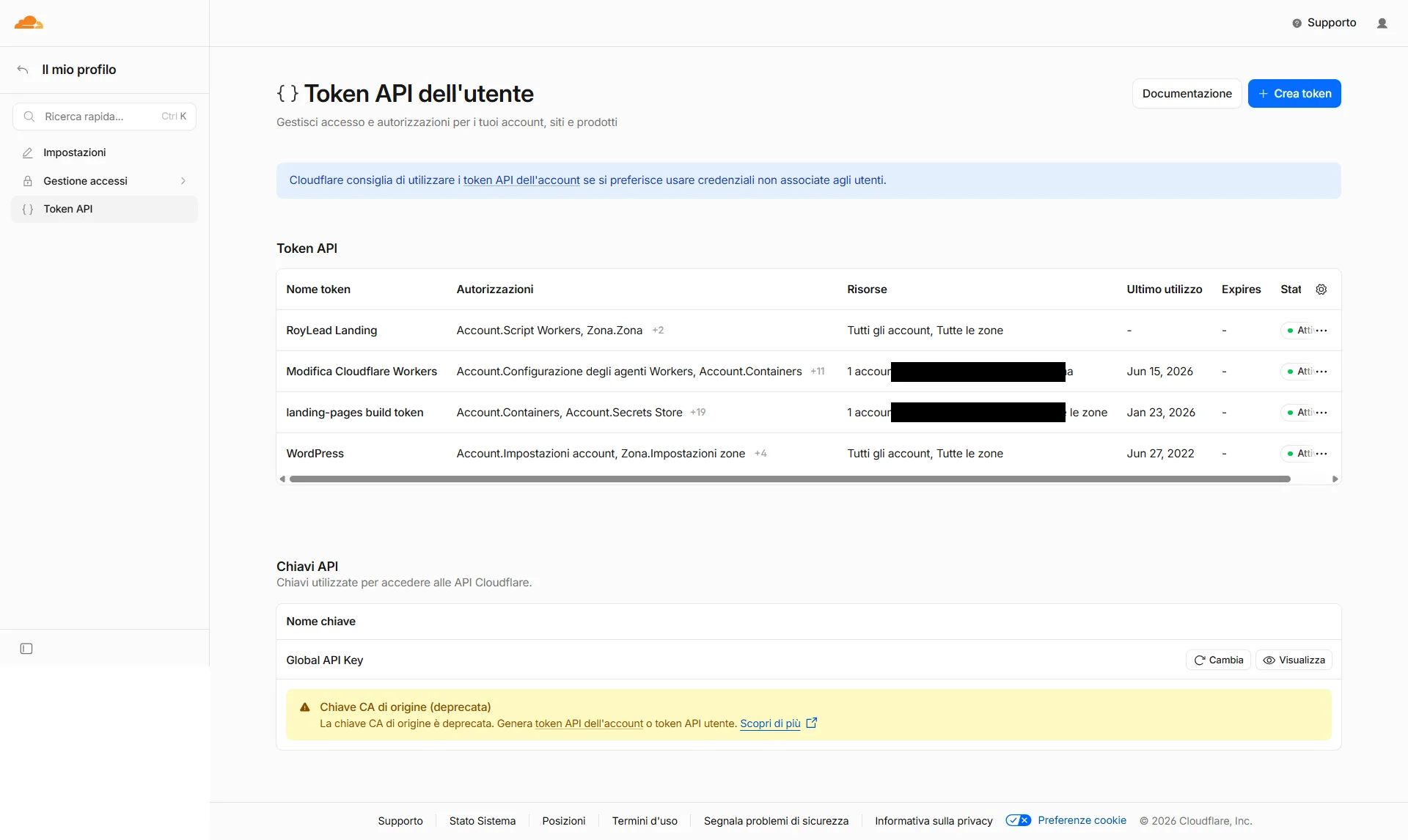
User API Tokens list with the "Create Token" button top-right 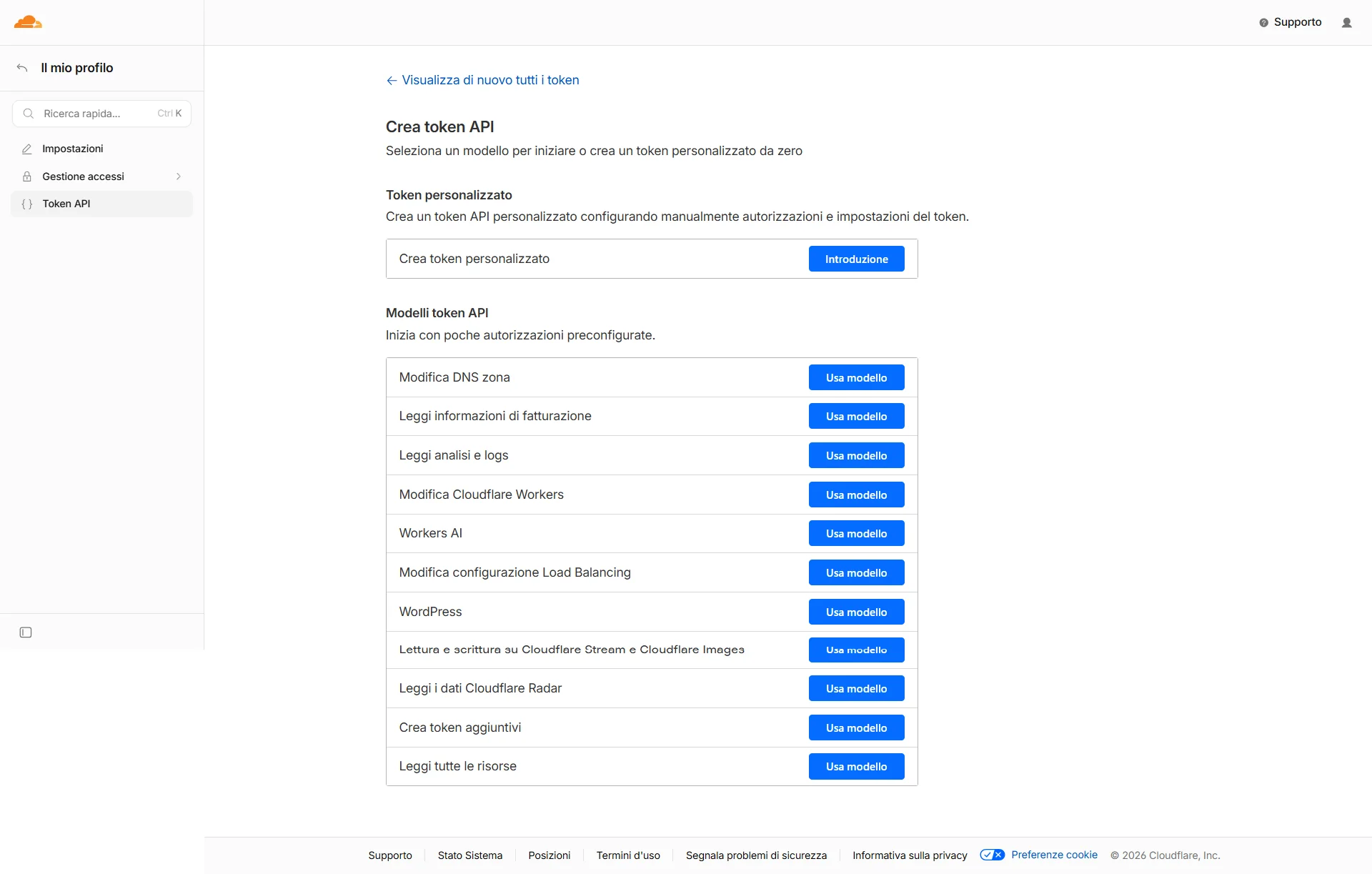
Create API Token page: choose "Create Custom Token" -
Token name: anything (e.g. RoyLead Landing).
-
Permissions — add 4 rows (the "+ Add more" button for each). Each row has 3 menus: type (Account/Zone) · permission · level:
Type Permission Level Account Workers Scripts Edit Zone Workers Routes Edit Zone DNS Edit Zone Zone Read 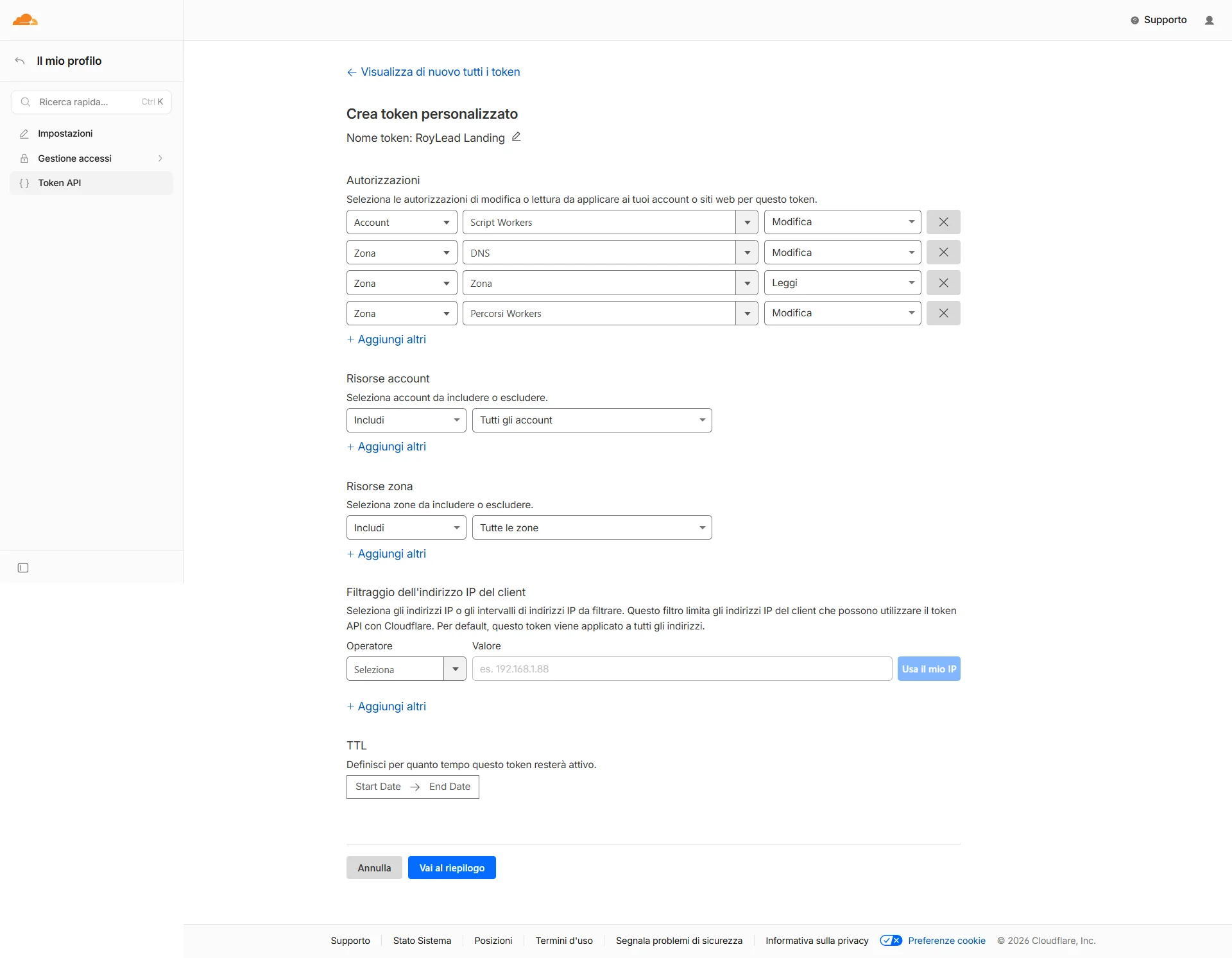
Custom token form with the 4 permissions filled in: Workers Scripts, Workers Routes, DNS, Zone -
Account Resources: Include → All accounts (leave as is).
-
Zone Resources (appears as soon as you add a Zone permission): Include → All zones.
-
Client IP Filtering and TTL: leave them empty.
-
Continue to summary: it must show all 4 permissions —
- All accounts → Workers Scripts:Edit
- All zones → DNS:Edit, Zone:Read, Workers Routes:Edit
Then Create Token → copy the token (shown only once).
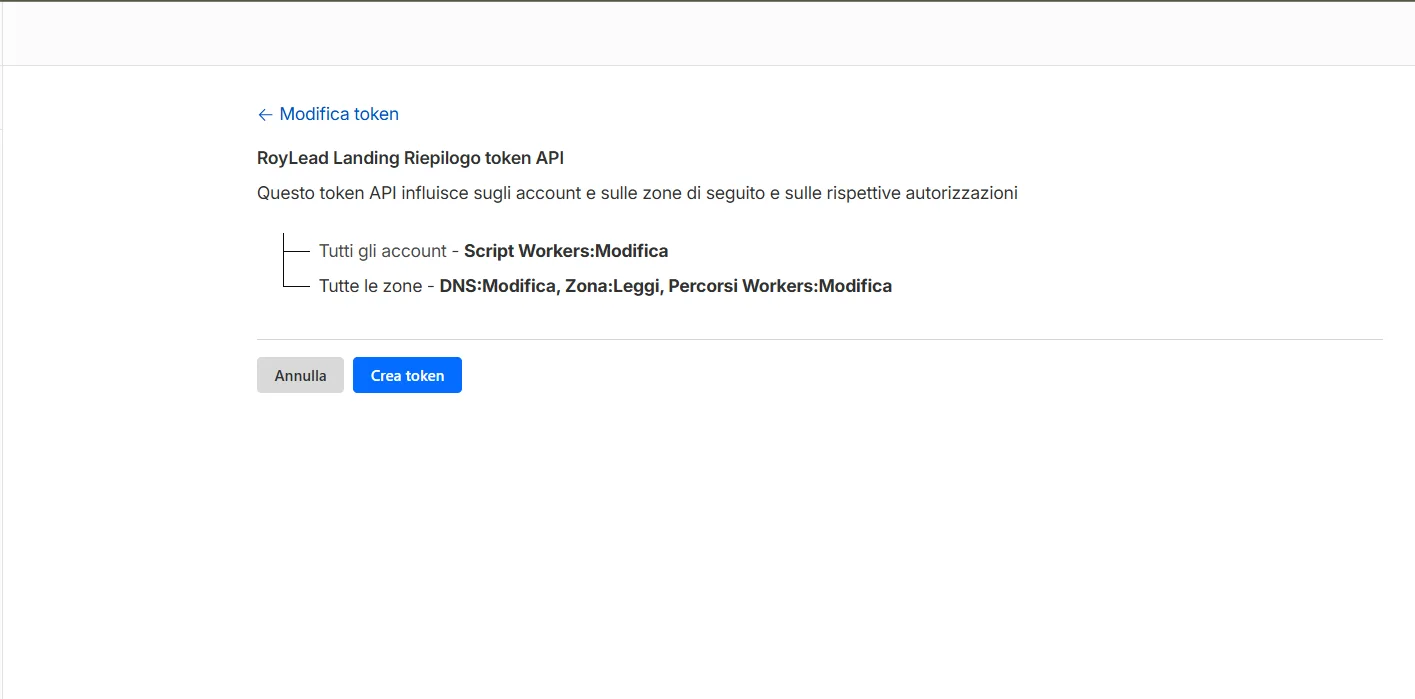
Token API summary with the 4 correct permissions: Workers Scripts, DNS, Zone, Workers Routes
2. In RoyLead — Settings → AI Tools → Cloudflare
Paste the API token → Save. (RoyLead derives the Account ID from the token — you don't need to look it up.) When the badge shows Configured (green), you're set.
Publishing
In RoyLead → Landing pages → New landing (editor): pick a name + domain, write the HTML in the editor, then Publish. The landing goes live at yourdomain.com/<path> (the RoyLead tracker is injected automatically). On the first deploy, SSL can take a few minutes.
💡 Notes
- The token is stored encrypted; to rotate it, create a new token on Cloudflare and paste it again.
- The 4 permissions are the minimum: upload the page (Workers Scripts), route the path (Workers Routes), manage DNS, read your domains (Zone).
Ready to put this into practice?
Create your RoyLead account and start in minutes.