Export and upload a campaign to Meta
Export the ready-made bundle from RoyLead (sheet + creatives) and import it into Meta as drafts. Key rule - upload images and videos first, then the Excel sheet.
Updated on June 21, 2026
RoyLead builds a ready-made Meta package for you: an Excel sheet with the campaign, ad sets and ads already filled in, plus all the creatives (images and videos). You import it into Ads Manager and the ads are created as drafts (unpublished): you review, tweak and publish them yourself.
⚠️ Golden rule: in the import dialog, upload the images and videos FIRST, and the Excel sheet ONLY at the end. If you upload the sheet first, Meta can't find the media yet and shows the "Image/Video not found" error.
1. Export from RoyLead
On the campaign, click Export: you download a folder containing import-ads.xlsx and the creative files (creative-1.png, creative-2.mp4, …). Unzip it — you'll need both the sheet and the media files.
2. Open the import in Meta
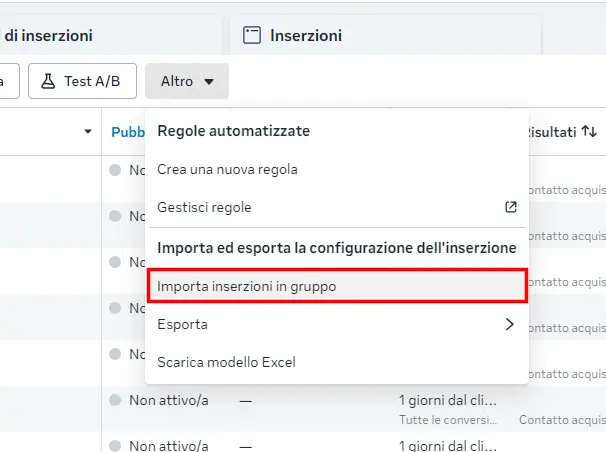
In Ads Manager → Ads tab → More → Import ads in bulk.
3. Upload the media first, the sheet last
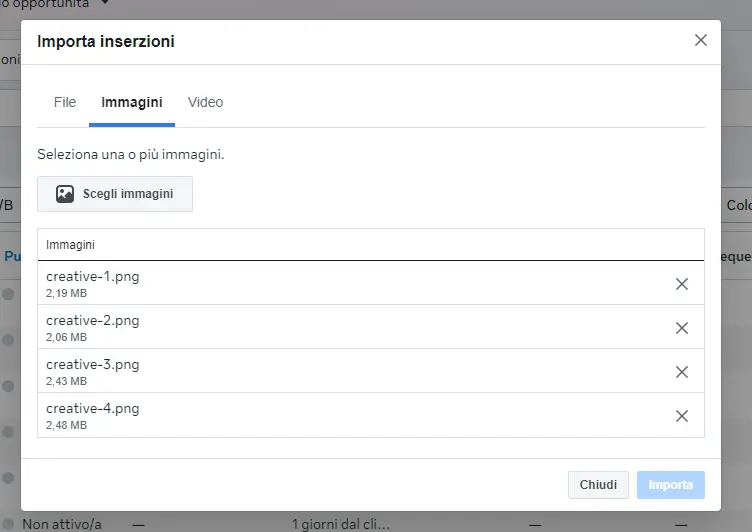
The "Import ads" dialog has three tabs: File, Images, Videos. Order matters.
a) Images tab → "Choose images" → select the creative-*.png files.
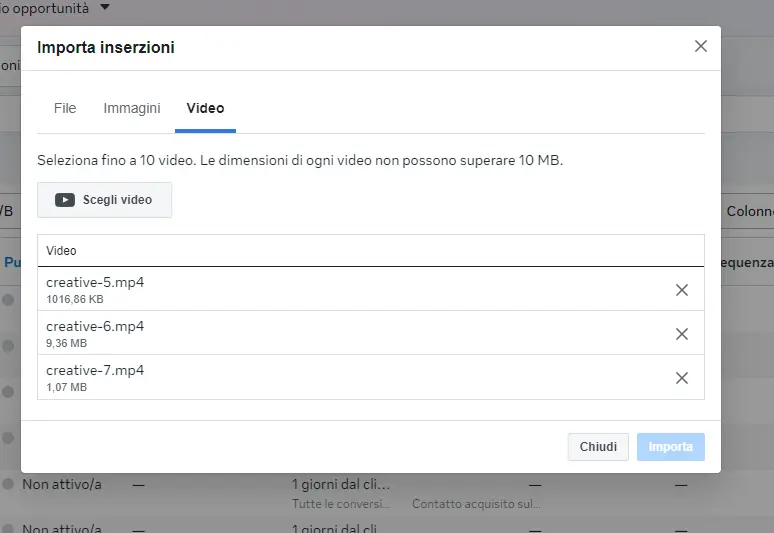
b) Videos tab → "Choose videos" → select the creative-*.mp4 files.
Each video must be max 10 MB (Meta's limit). If it's bigger, compress it or use a shorter clip.
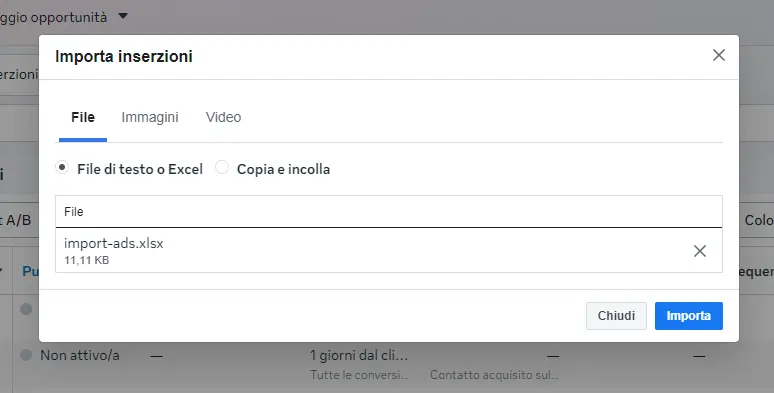
c) Only at the end, File tab → upload import-ads.xlsx → Import.
4. Wait for processing
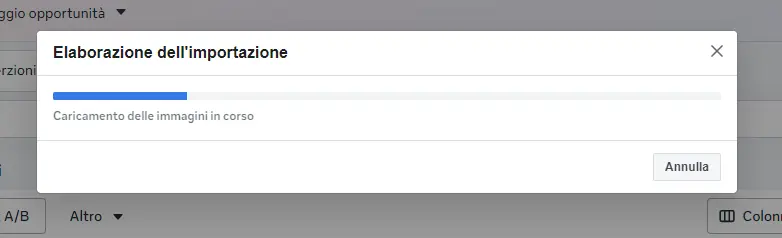
Meta uploads the media and creates the ads. Wait for the bar to finish.
5. The draft is ready
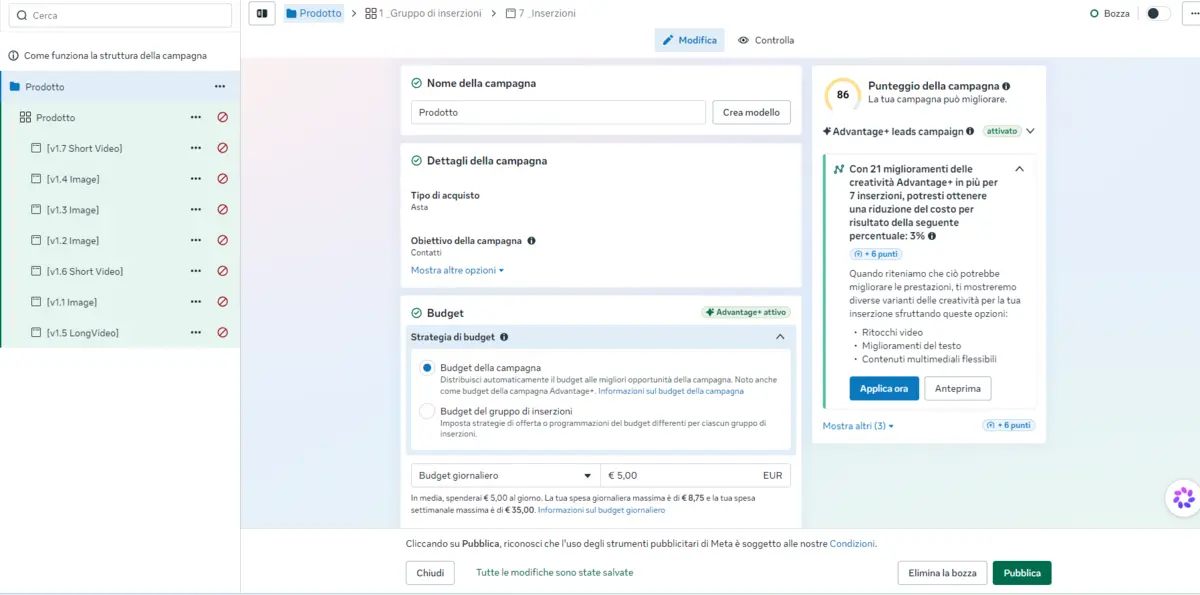
The ads appear as a draft (unpublished). From here you edit the details (budget, targeting, copy…) and hit Publish when ready.
⚠️ 1:1 and 9:16 creatives together: not supported
Meta won't import both square (1:1) and vertical (9:16) creatives from the same sheet.
👉 From the sheet, import only the 1:1 ones. Add the 9:16 ones manually after the import, directly on the ad in Meta (uploading them as additional media of the same ad).
💡 If the creatives you uploaded don't show up in Meta's media library (when adding them manually or replacing media), refresh the page (F5): Meta only lists them after a refresh.
Common errors
- "Image/Video not found" → you didn't upload the media in the Images/Videos tabs, or you uploaded them after the sheet. Always upload the media before the Excel sheet.
- "Check the creative type" (on videos) → fixed on the RoyLead side: re-export the campaign to get the updated sheet.
- Video rejected → it's over 10 MB. Compress or shorten it.
The ads stay unpublished drafts until you hit Publish: you can import safely and fix everything before going live.
Ready to put this into practice?
Create your RoyLead account and start in minutes.