Set up your FlamyFox offers
Connect FlamyFox to RoyLead — save your credentials, enable status postbacks and create the offer with its Offer ID to forward leads automatically.
Updated on June 24, 2026
FlamyFox is natively integrated in RoyLead: once you've saved your credentials and created the offer, every lead collected on your landing page is forwarded to FlamyFox automatically, and status updates (approved / cancelled / duplicate) come back on their own.
💡 The full loop is always this: 1) save your credentials → 2) enable status postbacks → 3) create the offer with its Offer ID → 4) link it to your landing pages.
Before you start
You need, from your FlamyFox panel (app.flamyfox.com):
- Your account's Email and your API Key (in the panel's API settings).
- The Offer ID of each offer you want to promote.
📌 FlamyFox gives you these values, not RoyLead. If you can't find them, ask your FlamyFox manager.
💳 FlamyFox pays in EUR: in the offer the payout is preset to EUR.
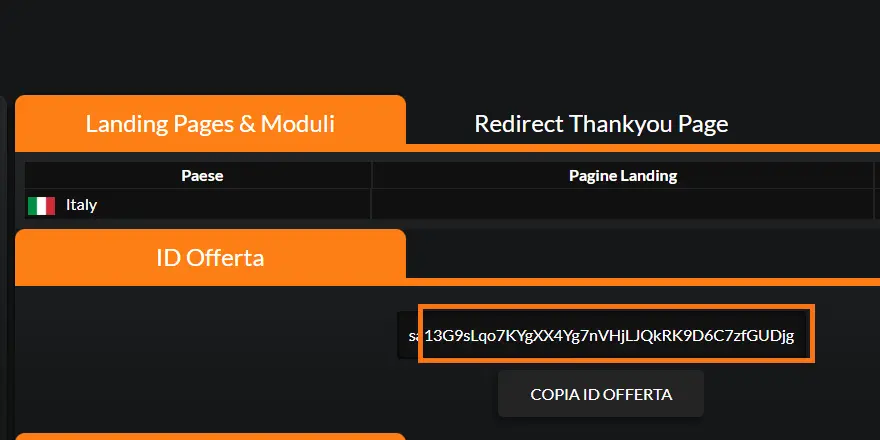
Where to find the Offer ID
Open the offer on the FlamyFox panel: the Offer ID is in the section of the same name, with a «Copy Offer ID» button. It's the value you'll paste in the Offer ID field when you create the offer (Step 3).
Where to find the API Key
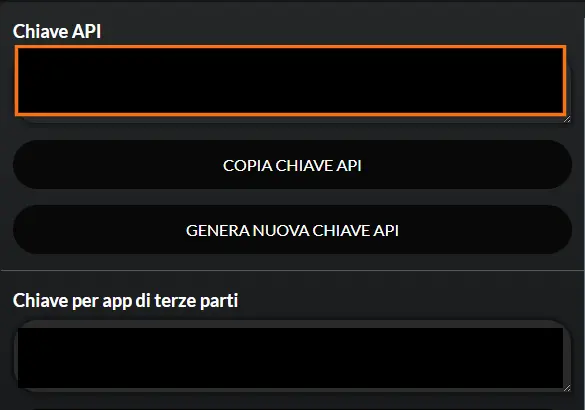
On the FlamyFox panel go to Settings → Tracking & API → API Management (the first time, click Request API to enable it). There you'll find your API Key: copy it with the «Copy API Key» button. The Email is the one of your FlamyFox account.
Save your credentials
- Go to Settings → Network Credentials.
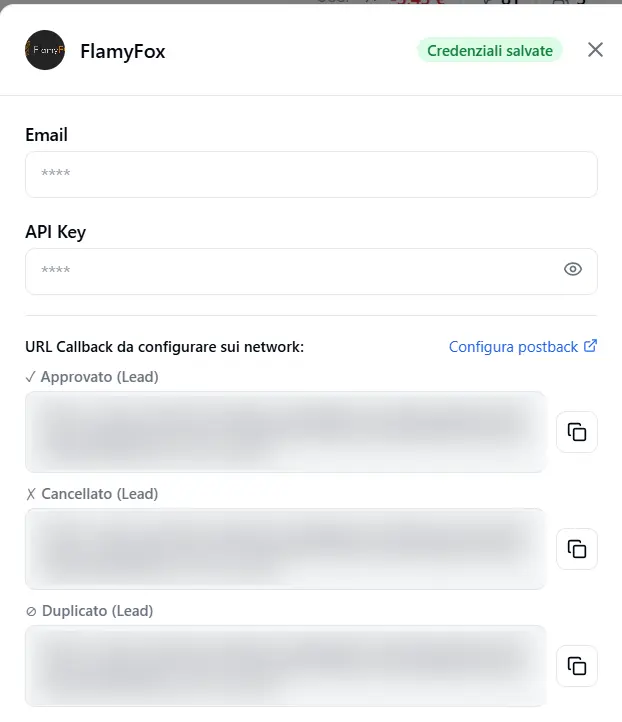
- Open the FlamyFox card and fill in Email and API Key.
- Click Save credentials: the green Credentials saved badge appears.
🔒 Credentials are saved per team and reused by all FlamyFox offers: you enter them only once.
Enable status postbacks
FlamyFox reports the outcome of each order by calling RoyLead back. There's a dedicated URL for each status.
- Still in Network Credentials, generate/copy the Webhook Token.
- Under the FlamyFox card, RoyLead shows you three callback URLs ready to use (with the token and the lead-id placeholder): Approved ✓, Cancelled ✗, Duplicate ⊘.
- Open FlamyFox's global postback (there's a «Configure on network» link next to the URLs) and paste each URL in the matching status field.
💡 Leave the lead-id placeholder (
{{subid}}) as it is: FlamyFox replaces it on its own. Without postback, leads are still forwarded but stay «pending».
Create the offer
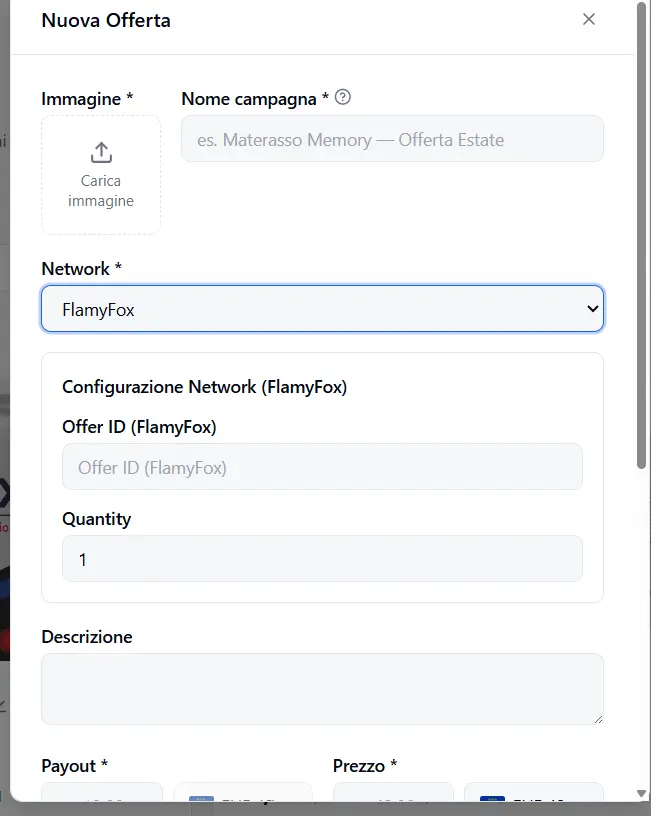
- Go to Offers and click New Offer.
- Image and Name — the offer's identity.
- Network — pick FlamyFox from the menu. The Network Configuration appears below.
- Offer ID (FlamyFox) — paste the offer's ID.
- Quantity — leave
1, except for bundle offers that require qty2. - Payout — what you earn per valid lead, in EUR (preselected).
- Price + Currency — the product price for the customer, in the offer's local currency.
- Daily cap / Total cap, Duplicate window, Target countries, Offer URL — as for any offer.
- Save.
Link the offer to your landing pages
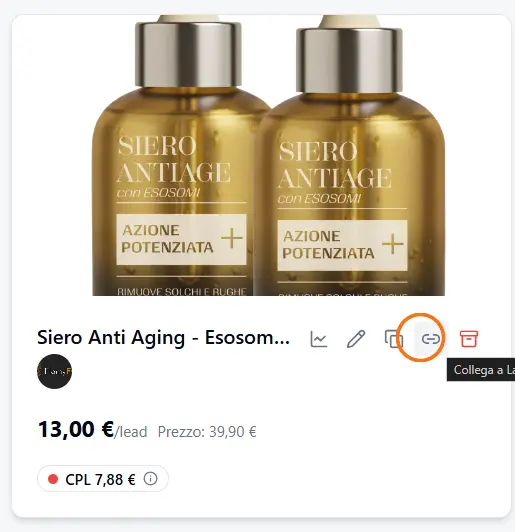
In the Offers list, on the offer card click the chain icon («Link to Landing») and choose the landing pages to link: from then on, every lead collected on those landings is forwarded to that FlamyFox offer.
Check
- Publish a landing page linked to the FlamyFox offer.
- Send a test lead from the form.
- In RoyLead → Leads the lead should move to Forwarded; when FlamyFox processes it, the status updates on its own thanks to the postbacks from Step 2.
💡 Status stuck on «pending»? Double-check the three callback URLs (Step 2) are pasted in the right fields of the FlamyFox panel, with the placeholder intact.
Ready to put this into practice?
Create your RoyLead account and start in minutes.