Set up your AdCombo offers
Connect AdCombo to RoyLead — save your API key, wire the status postbacks and create the offer with its Offer ID and Country Code to forward leads automatically.
Updated on July 29, 2026
AdCombo is natively integrated in RoyLead: save your API key once, create the offer, and from then on every lead collected on your landing pages is forwarded to AdCombo automatically. Status updates (approved / cancelled / duplicate) come back on their own.
💡 The full loop is always this: 1) save the API key → 2) paste the postbacks into your AdCombo panel → 3) create the offer with its Offer ID and Country Code → 4) link it to your landing pages.
Before you start
You need, from your AdCombo panel:
- Your account API key (one key, it works for every offer).
- The Offer ID of each offer you want to run (a number, e.g.
34834). - The Country Code of that offer's country (two letters, e.g.
RSfor Serbia).
📌 On AdCombo the same offer exists in several countries: the Offer ID alone isn't enough, the country is part of the address. That's why RoyLead asks for two separate fields, and both are required.
💳 AdCombo pays in USD: the payout on the offer is already set to dollars and can't be changed (the network decides it). The price goes in the country's local currency instead (e.g.
RSDfor Serbia,ARSfor Argentina).
Where to find the API key
The API key is personal and your AdCombo manager hands it to you — message them on Telegram or Skype and ask for it.
If you already downloaded a landing page from their panel, you have it already: it sits inside that landing's config.php file, along with the other parameters.
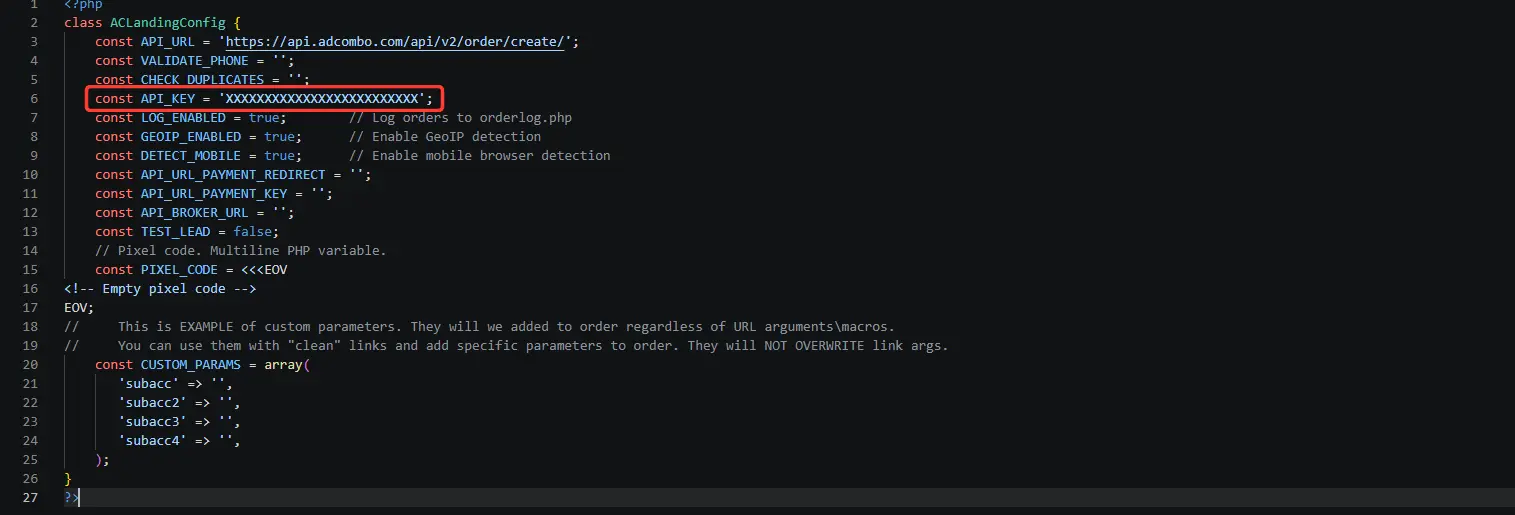
🔒 The API key is as good as a password: anyone holding it can create orders in your name. Don't paste it in group chats and don't leave it inside landing pages you publish.
Where to find the Offer ID and Country Code
Open the offer in your AdCombo panel:
- the Offer ID is the number right under the offer name, labelled ID (
36059in the example); - the country is the Stato (country) row in the right-hand column (
Mexico→ Country CodeMX).
The same column also shows your payout and the flow type (COD = cash on delivery).
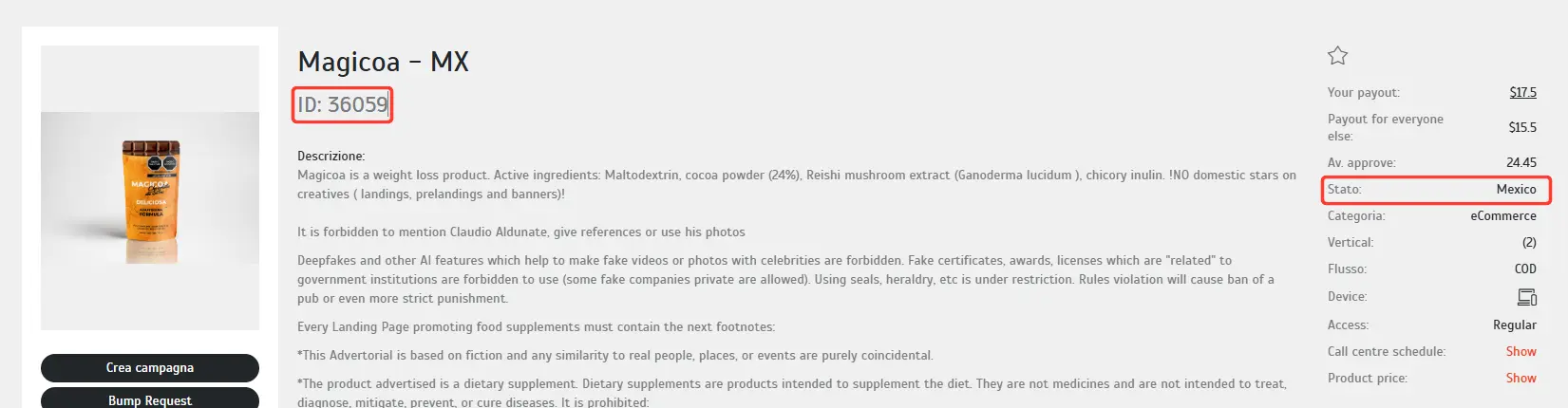
💡 The Country Code is the country's two letters, not its name: Mexico →
MX, Serbia →RS, Thailand →TH.
Save the API key
- Go to Settings → Network Credentials.
- Open the AdCombo card and paste your API Key.
- Hit Save Credentials: the green Credentials saved badge appears.
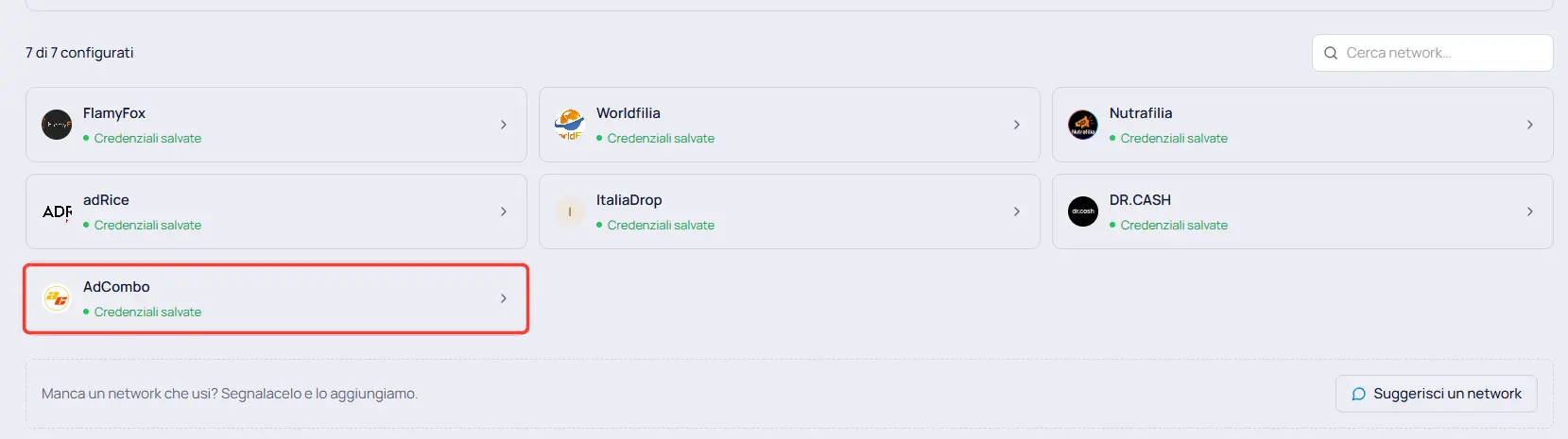
🔒 Credentials are saved per team and shared by all your AdCombo offers: you enter the key once.
Paste the postbacks into AdCombo
Postbacks are how AdCombo tells you how each order ended. Without them leads are still forwarded, but they sit on "Forwarded" forever and you never know which ones got approved.
- Still in Network Credentials, open the AdCombo card and generate (or copy) your Webhook Token: the ready-made URLs appear right below it.
- Go to your AdCombo panel, under Postback → Settings, and paste each URL into its field:
| Field on AdCombo | URL to paste |
|---|---|
| Lead postback URL | .../webhooks/callback/approved?token=YOUR_TOKEN&lead_id={subacc} |
| Rejected postback URL | .../webhooks/callback/cancelled?token=YOUR_TOKEN&lead_id={subacc} |
| Hold postback URL | .../webhooks/callback/hold?token=YOUR_TOKEN&lead_id={subacc} (optional) |
- Tick I want to use global postbacks only and hit Save: that way they cover every AdCombo offer you run, instead of being set offer by offer.
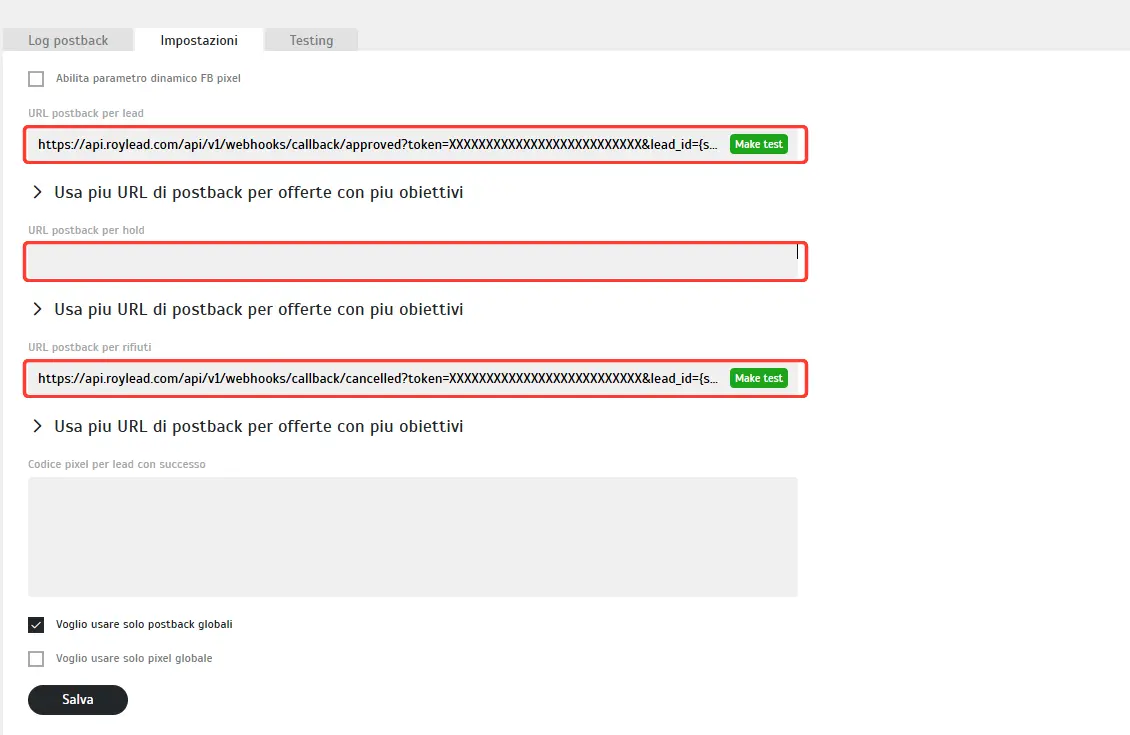
⚠️ Leave
{subacc}exactly as it is: it's the macro AdCombo replaces with the lead's ID. Delete or change it and the postbacks arrive but match no lead.
📌 The hold URL isn't among the ready-made ones: if you want it, copy the lead one and change
approvedtohold— it only logs the step, it doesn't change the status. Duplicates need nothing: AdCombo tells us in its reply to the submission, and the lead is flagged as a duplicate on its own.
Create the offer
- Go to Offers and hit New Offer.
- Network — pick AdCombo. Its two fields appear below.
- Offer ID — the offer's number on AdCombo (e.g.
34834). - Country Code — that offer's country, two letters (e.g.
RS). - Image and Name — the offer's identity (e.g.
SkinDuo - COD - [RS]). - Payout — what you earn per valid lead, in USD (already set).
- Price + Currency — what the customer pays, in the country's currency.
- Daily cap / Total cap — optional limits (empty = no limit).
- Duplicate window (days) — how long the same phone counts as a duplicate (default 30).
- Target countries and Offer URL — the countries you accept leads from and the link to the offer in your AdCombo panel.
- Save.
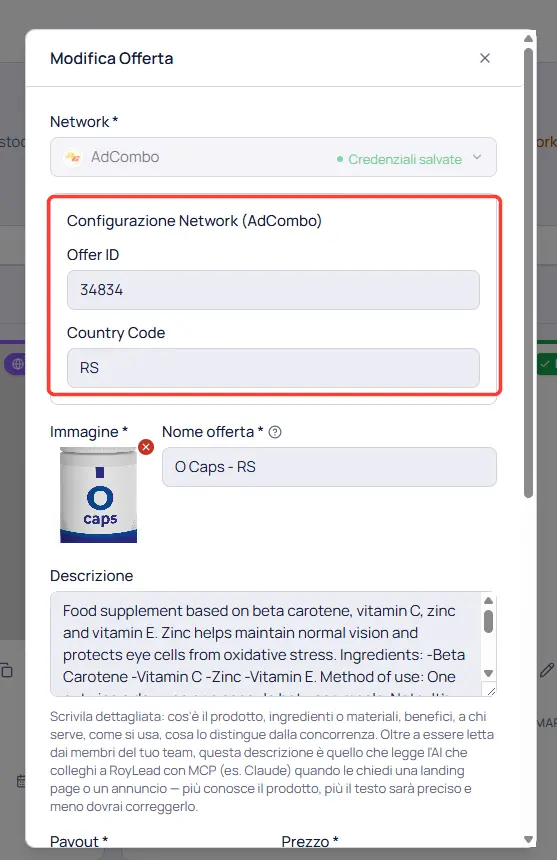
💡 Can't find the currency or the country you need? Right under those fields there's a link to tell us: we'll add them.
Link the offer to your landing pages
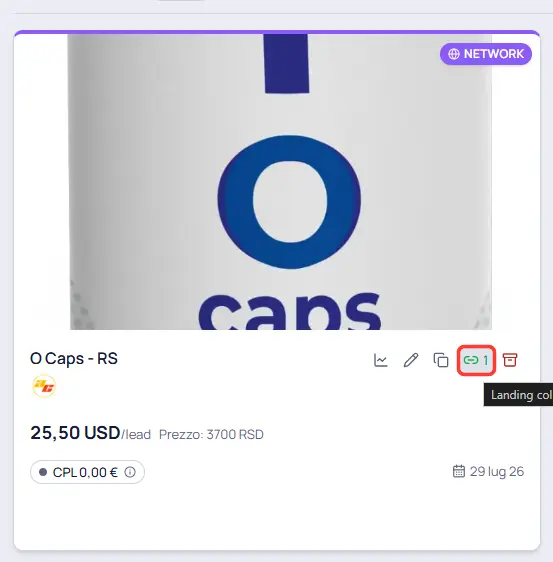
In the Offers list, on the offer card click the chain icon ("Link to Landing") and pick your landing pages: from then on every lead collected there is forwarded to that AdCombo offer.
Put Terms & Conditions on your landing page
AdCombo requires the order page to carry Terms & Conditions and a Privacy policy. If they're missing, it tells you in the response to every order:
"warning": ["Need to add terms & conditions."]
The order is accepted anyway, which makes it easy to ignore — and that's a mistake: this is exactly the kind of gap that gets an offer put under review or conversions disputed.
In RoyLead it takes two minutes, because legal pages belong to the domain, not to a single landing page: write them once and they cover every landing published there.
- In Landing Pages create a page of type Terms & Conditions (and a Privacy policy, if you don't have one yet) on the domain you use. They're served at a fixed address, like
yourdomain.com/shared/terms-and-conditions.html. - Write them in the country's language, covering who sells, delivery, returns and contact details.
- Republish the landing: if its HTML has no legal links already, RoyLead appends a small footer with links to whichever legal pages the domain has.
💡 The privacy consent in the form is already covered: the checkbox, with the link to the domain's policy, is rendered by our form. What's missing — and what AdCombo is asking for — are the sale's terms & conditions.
⚠️ This isn't just about AdCombo: an order page without terms and privacy is one of the most trivial reasons Meta and TikTok reject ads.
Check it works
- Publish a landing page linked to the AdCombo offer.
- Send a test lead through the form.
- In RoyLead → Leads the lead must turn to Forwarded. Open it: the Traffic panel shows AdCombo's raw response, which on success carries
"code": "ok"and anorder_id. - On AdCombo the order shows up in the logs with subacc equal to the RoyLead lead ID.
💡 Lead in Error right after submitting? It's almost always one of three things: wrong API key, an Offer ID and Country Code that don't exist as a pair, or the offer not being live in that country. The exact reason is written in the lead's detail.
Ready to put this into practice?
Create your RoyLead account and start in minutes.