How to connect a new domain
Add your domain, verify ownership with a DNS TXT record, and activate it to publish your landing pages.
Updated on May 31, 2026
Connecting your own domain to RoyLead lets you publish landing pages and collect leads on your custom address (e.g. yourname.com). More professional, more visitor trust, more valid leads.
💡 Time required: ~5 minutes of work + DNS propagation time (usually a few minutes, up to 48 hours in the worst case).
Before you start
You'll need:
- A domain already registered with a provider (e.g. GoDaddy, Namecheap, Cloudflare, Aruba).
- Access to that provider's DNS panel (under "DNS", "DNS Management" or "DNS Zone").
💡 Don't have a domain yet? You can register one in minutes on Namecheap: Register Domain
Add the domain
- Click Add Domain.
- Fill in the fields:
- Domain Name: a recognizable label (e.g.
Main Shop). It's just for you to find it. - Domain: the actual domain, as
example.com— withouthttp://and withoutwww. - Assigned to (admins only): who gets the clicks and leads from this domain. Leave "Myself" if unsure.
- Domain Name: a recognizable label (e.g.
- Confirm with Add Domain.
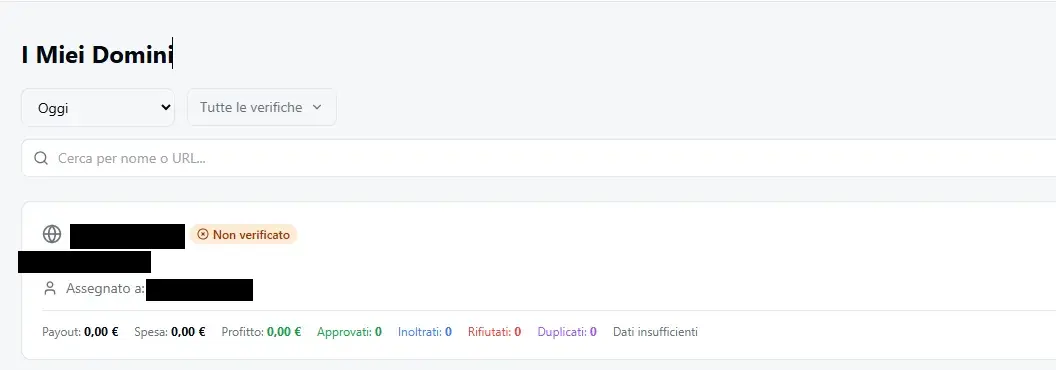
The domain appears in the list with a Not verified badge: now you need to prove ownership.
Copy the verification TXT record
Open the domain and go to Verify DNS. RoyLead shows the record to create:
- Record Type:
TXT - Host / Name:
_domain-verify.yourdomain.com - Value: a unique string generated for your domain
Use the Copy button next to the host and value: typos are the number-one cause of failed verifications.
⚠️ This record only proves ownership. It doesn't move traffic yet — you set that up in Step 6.
Add the TXT record at your provider
- Log in to your provider's DNS panel.
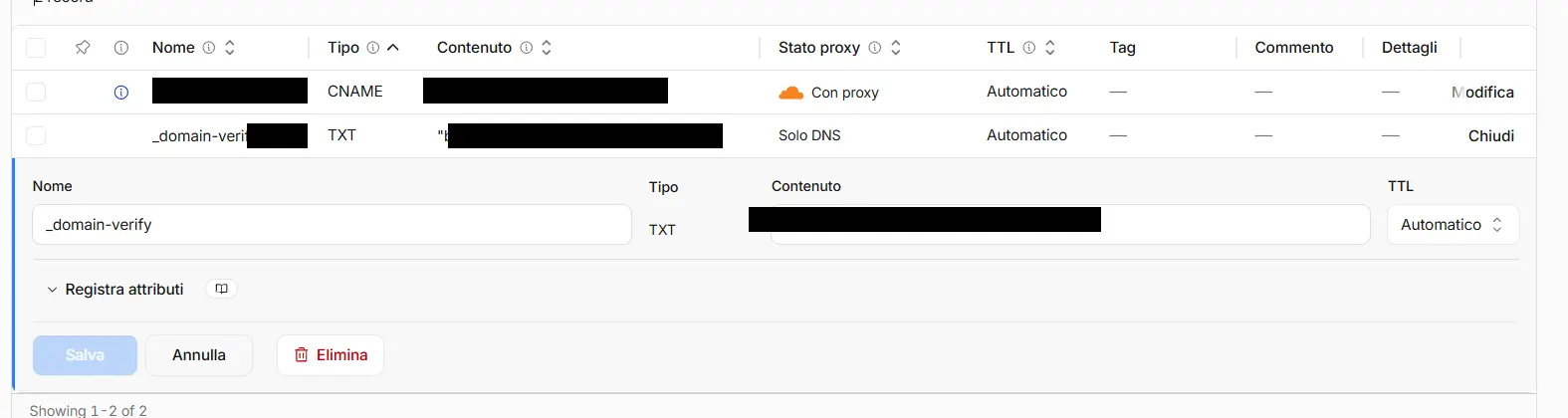
- Create a new record with the exact data from Step 3:
- Type:
TXT - Name / Host:
_domain-verify.yourdomain.com(some providers only want_domain-verify, without the trailing domain). - Value: paste the copied string.
- Type:
- Save.
Verify ownership
Go back to RoyLead and click Verify DNS.
- If everything is correct, the badge turns to Verified ✅.
- If it fails immediately, DNS hasn't propagated yet: try again in a few minutes (up to 48 hours in the worst case).
Choose the site type
Set the Site Type based on where your landing pages live:
- WordPress — install the RoyLead plugin on your site (Plugins → Add new → Upload plugin), activate it and enter your API key. Landing pages sync automatically.
- Builder — pages built with the AI Builder are served by us. Add a CNAME record in your DNS pointing to the address shown in the Points to field.
- HTML / Custom — for your own custom site.
ℹ️ Only the Builder type needs the CNAME record (in addition to the verification TXT). For WordPress and HTML the Step 3-4 TXT is enough.
Activate the domain
Once Verified, click Activate. From now on the domain is live.
⚠️ You can't activate a domain before verifying DNS — you'd get "Verify DNS before activating the domain".
(Recommended) Address autocomplete
In the domain settings you can enter the Google Maps API Key to enable Google's suggestions when a visitor types an address in the form. Optional, but it improves the quality of the data you collect.
Full procedure in the dedicated guide: Google Maps API Key.
Troubleshooting
| What you see | Cause | Fix |
|---|---|---|
| Badge stays "Not verified" | DNS not propagated yet | Wait some minutes/hours and click Verify DNS again |
| Verification fails immediately | Wrong or unsaved TXT record | Review Step 4: check Type, Host and Value against what RoyLead shows |
| "Verify DNS before activating the domain" | Activating an unverified domain | Complete Steps 3-5 first |
| "This domain already exists in the team" | Domain already added | Find it in the list instead of recreating it |
| "Invalid domain format" | You included www or http:// | Re-enter it clean as example.com |
💡 Have multiple domains? Connect each with this same procedure: in RoyLead every domain is managed independently.
Need help?
If after 48 hours the domain is still "Not verified", check with your provider that the TXT record was saved correctly. If in doubt, contact support.
Ready to put this into practice?
Create your RoyLead account and start in minutes.