Connect RoyLead to Claude (MCP)
Manage RoyLead by chatting with Claude — domains, landings, pixels, leads, campaigns and creatives. Connect from Claude.ai (web) or Claude Code.
Updated on July 11, 2026
RoyLead connects to Claude through MCP (Model Context Protocol): from a chat you can ask Claude to manage your account — create domains and link landing pages, read your leads, check campaign ROI, generate creatives with AI and more. Claude acts with your permissions, exactly as you would from the dashboard.
💡 There are two ways to connect, depending on where you use Claude: Claude.ai (browser, desktop app, phone) or Claude Code / Claude Desktop (on your computer). You can use both.
What you can do once connected
- Domains: create a domain, get the TXT record, verify DNS, manage settings.
- Landing pages: create them, link them to a domain and to an offer.
- Leads: read your leads (team owners/admins see the whole team's, operators see only their own).
- Ad campaigns: read accounts, ad sets, ROI and Meta insights.
- AI creatives: generate images, browse the gallery and presets.
- Feed: read community posts and comments.
- Profile and team: read and update settings (name, language, notifications, team settings if you're an owner/admin).
💡 Sensitive actions stay out of the chat for safety: password/email changes, 2FA, billing/payments, deleting a team and removing members are only done from the dashboard.
Option A — Claude.ai (browser, app, phone)
On Claude.ai you connect with a secure login: no key to paste.
Step 1 — Open Connectors
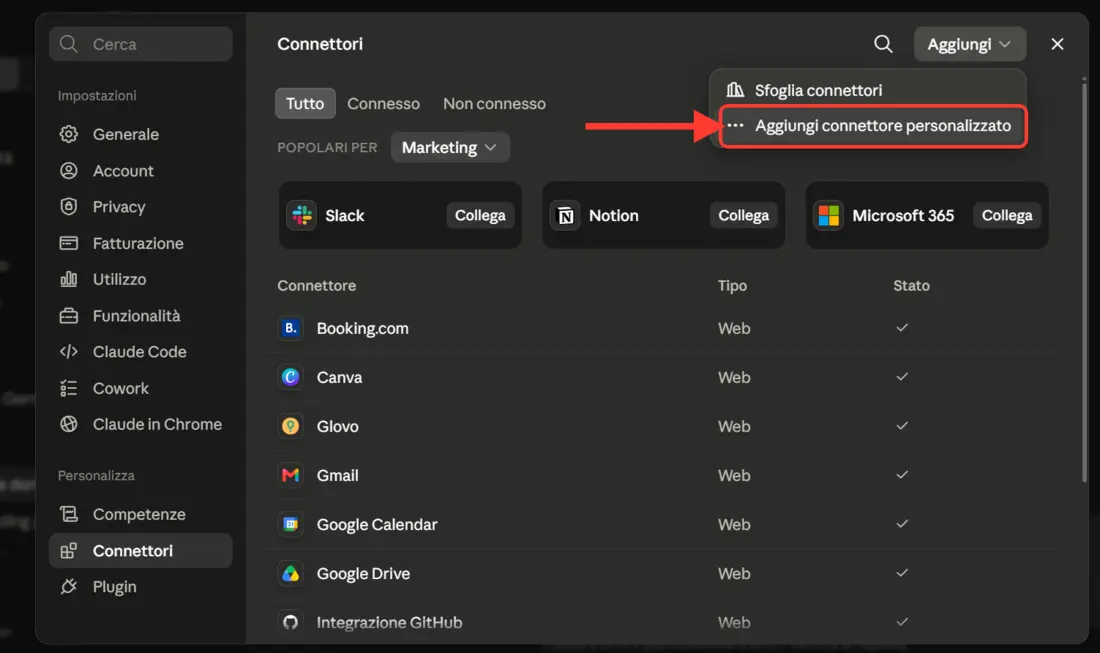
On claude.ai go to Settings → Connectors and choose Add custom connector from the Add menu at the top right.
Step 2 — Paste RoyLead's address
As the MCP server URL, enter:
https://api.roylead.com/api/v1/mcp
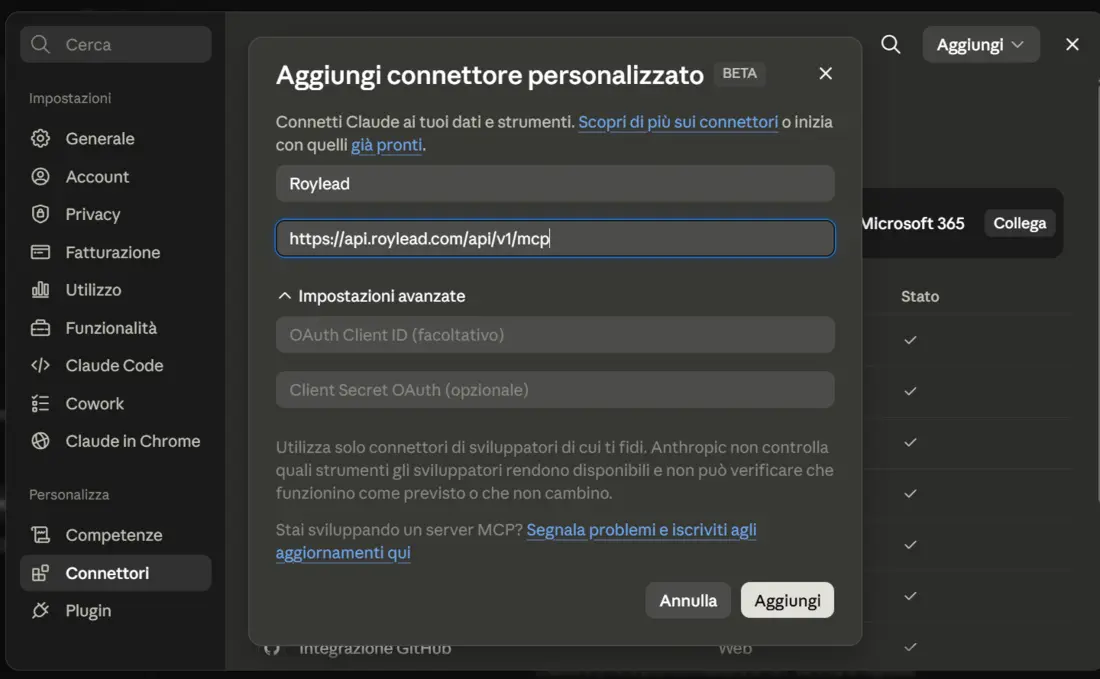
The name is up to you (e.g. "RoyLead"); the advanced settings (OAuth Client ID / Secret) stay empty. Confirm to add the connector.
Step 3 — Authorize access
Claude will open RoyLead's page: sign in with your account (if you haven't already) and you'll see a consent screen telling you which application is requesting access and where it will be redirected. Check the address is Claude's, then click Authorize.
Done: the connector shows as connected and you can start asking Claude to work on RoyLead.
💡 You can revoke access anytime by removing the connector in Claude.ai. Each authorized session is independent.
Option B — Claude Code / Claude Desktop (on your computer)
Here the connection uses a dedicated API Key with the "Claude MCP" scope.
Step 1 — Create the key in RoyLead
Go to Settings → API and create a new key with the Claude MCP scope.
Give it a recognizable name (e.g. "Claude MCP laptop") and copy the key (rl_...). You can also reveal it again later with the eye icon.
💡 Use a Claude MCP scoped key, not the WordPress plugin one: they're deliberately separate, so if one is compromised the other stays safe.
Step 2a — Claude Code (terminal)
In a terminal, run (replace the key with yours):
claude mcp add roylead --scope user --transport http https://api.roylead.com/api/v1/mcp --header "x-api-key: rl_YOUR_KEY"

--scope user makes the connection available in any folder. Then restart Claude Code (MCP servers load at startup) and verify with:
claude mcp list
roylead should appear as connected.
Step 2b — Claude Desktop
Alternatively, in Claude Desktop's MCP configuration add:
{
  "mcpServers": {
    "roylead": {
      "type": "http",
      "url": "https://api.roylead.com/api/v1/mcp",
      "headers": { "x-api-key": "rl_YOUR_KEY" }
    }
  }
}
Save and restart Claude Desktop.
💡 To remove access later, revoke the key from Settings → API: the connection stops working instantly, without touching your other keys.
Test that it works
Open a new chat with Claude and try asking:
- "What domains do I have on RoyLead?"
- "Read me the guide on connecting a domain."
- "How many leads did I get this week?"
If Claude answers with your data, the connection is live.
Troubleshooting
| What you see | Cause | Fix |
|---|---|---|
| Connector errors on Claude.ai | Wrong address | Use exactly https://api.roylead.com/api/v1/mcp (with api., not app.) |
claude mcp list shows "failed" | Wrong URL or key | Check the URL and that the key has the Claude MCP scope |
| "Unexpected content type: text/html" | You used app.roylead.com | The MCP lives on api.roylead.com, not the website |
| Claude can't see the new tools | Session not restarted | Close and reopen Claude Code/Desktop |
| An action is refused | Missing permission | Some actions are reserved for team owners/admins, or stay dashboard-only |
Need help?
If the connection won't start after checking the URL and key, contact support and mention where you're connecting from (Claude.ai, Claude Code or Claude Desktop).
Ready to put this into practice?
Create your RoyLead account and start in minutes.