Connect Meta with a token (System User)
One token to import spend and ROI from Facebook/Instagram and launch campaigns from RoyLead.
Updated on August 8, 2026
With a System User token from your Business Manager, RoyLead does two things:
- imports spend, clicks and impressions from your Facebook/Instagram ad accounts, to compute ROI and ROAS alongside your leads;
- creates and launches Meta campaigns straight from the dashboard, without going through Ads Manager.
You generate the token yourself in your Business Manager, with your own app: it works right away, with no need to wait for any Meta app approval.
📌 In short: you need one thing from Meta — a System User token with the
ads_managementpermission — to paste into RoyLead at Advertising → Connect account → "Meta · connect the whole Business Manager". No ad account ID needed: RoyLead discovers and connects every ad account you assigned to the token.
⚠️ Read access is not enough to launch. You need all three: the ad account assigned with write access, the pixel (dataset) assigned, and the Facebook Page assigned. If one is missing the connection still succeeds, but the campaign won't launch.
💡 Time needed: ~15 minutes. You must be an admin of the Business Manager that owns the ad account.
🔒 The token is like a password. RoyLead stores it encrypted and never shows it again after saving. Don't share it in chats, screenshots or email.
Open Business Settings
Go to Meta Business Manager and sign in with an admin account.
ℹ️ If you manage multiple businesses, check the selector at the top left and pick the right one — the business that owns the ad account.
Create a system user
A System User is a "technical user" of the business, designed specifically for integrations.
- In the left menu, go to Users → System users.
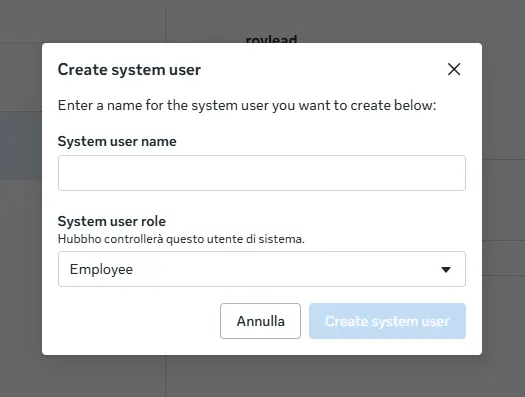
- Click Add.
- Give it a recognizable name, e.g.
RoyLead Sync. - Role: Employee — you don't need Admin. Write access comes from the assets you assign in steps 3-5, not from the role. Click Create system user.
Assign the ad accounts (with write access)
The token only sees the assets you explicitly assign to this user.
- With the system user selected, click Assign assets.
- Asset type: Ad accounts → select the accounts you want to connect. If you have more than one to use, select them all now: RoyLead connects them in one go.
- In the permissions, under Partial access, turn on "Manage campaigns": that's
ads_management, the permission that allows creating and launching. ("View performance" turns on by itself — it's included.) - Leave "Manage ad accounts" (Full control) off: it would also grant control over the account's payments and settings, which RoyLead doesn't need.
- Click Assign assets.
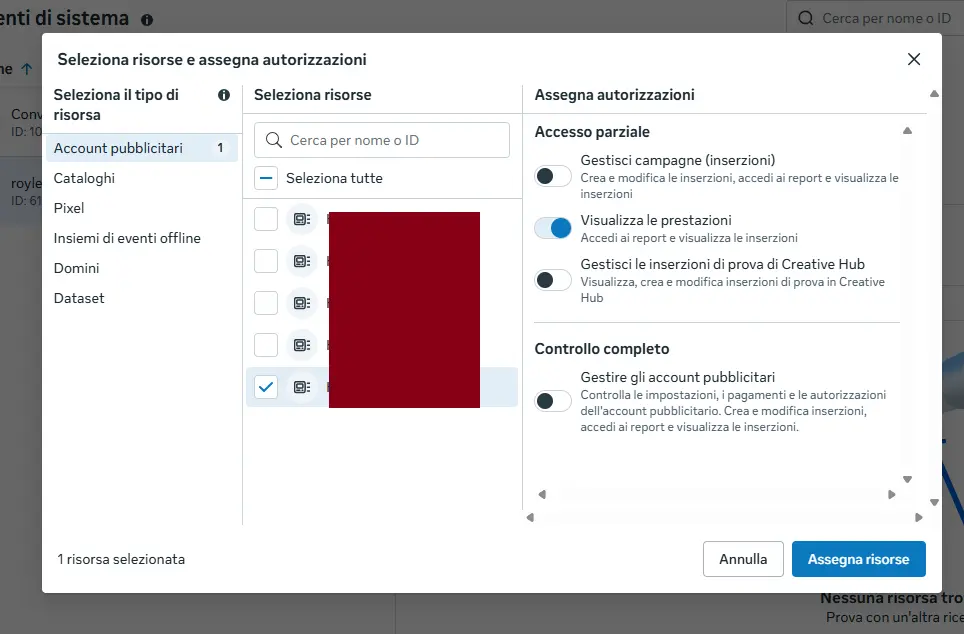
⚠️ With "View performance" only, the account connects and spend flows in, but launching won't work: Meta rejects the campaign creation with a permissions error.
Assign the pixel
At launch, the ad set declares the pixel as its conversion objective, and that call is made with the token: if the token can't see the pixel, Meta answers with a permissions error.
- Still under Assign assets, pick the asset type Datasets (older businesses call it Pixels).
- Select the pixel you use for these campaigns.
- Permissions: turn on "Use events dataset" (Partial access) — it explicitly says "create ads for conversions with this dataset". Leave "Manage events dataset" off.
- Click Assign assets.
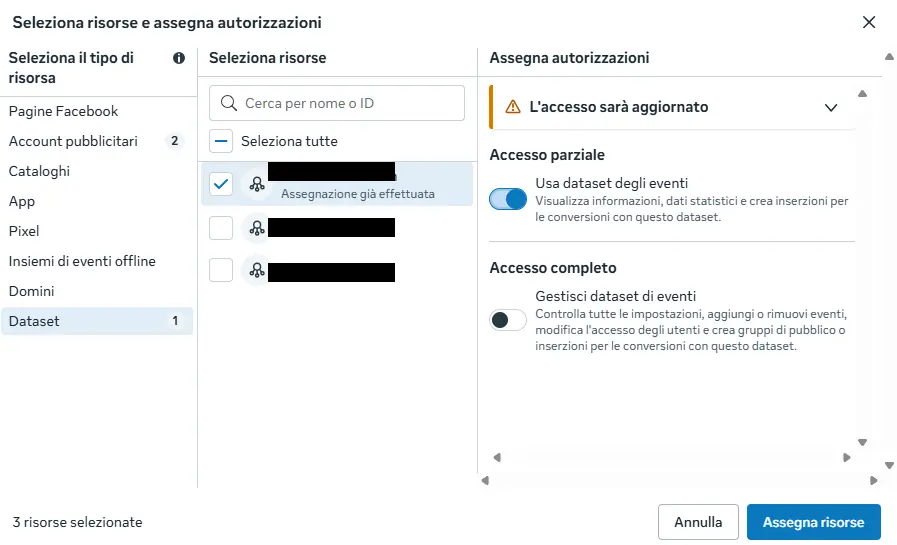
ℹ️ This is different from the CAPI token RoyLead uses to send events to Meta. Here it's only so the campaign can point at that pixel.
Assign the Facebook Page
Every Meta ad has a Page as its sender. Pages are assigned from a different section, not from the "Assign assets" dialog.
- Left menu: Accounts → Pages.
- Select the Page you'll use in your ads.
- Click Assign people and pick the
RoyLead Syncsystem user. - Turn on "Ads" (create and manage the Page's ads) and "Insights", then click Assign.
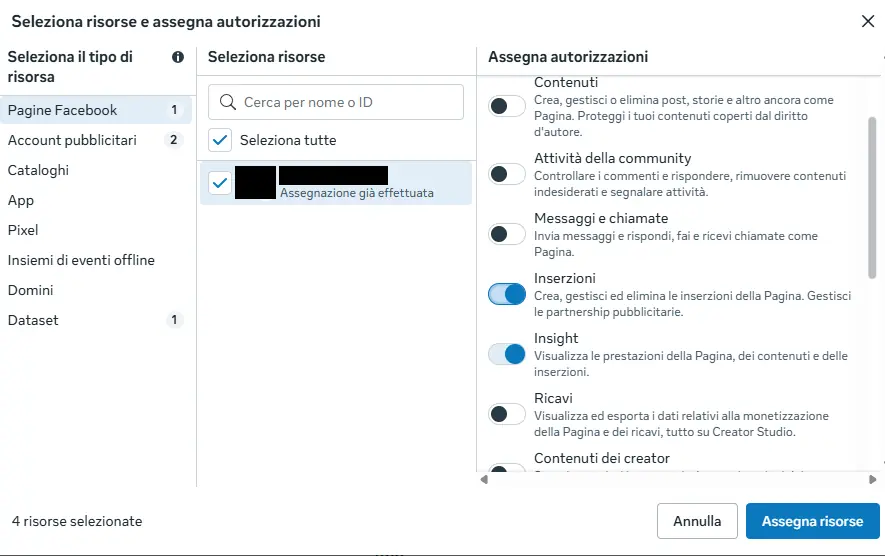
⚠️ If you hit a Page permissions error at launch, come back here and raise it to Full control: linking the Instagram account sometimes requires it.
Set up the app
The token is generated through an app owned by the business, and the system user must have a role on that app. If you already have an app linked to the system user, skip to Step 7.
Create the app (if you don't have one)
No Meta approval needed: the app is just the technical "container" for the token, and any business app with the Marketing API will do.
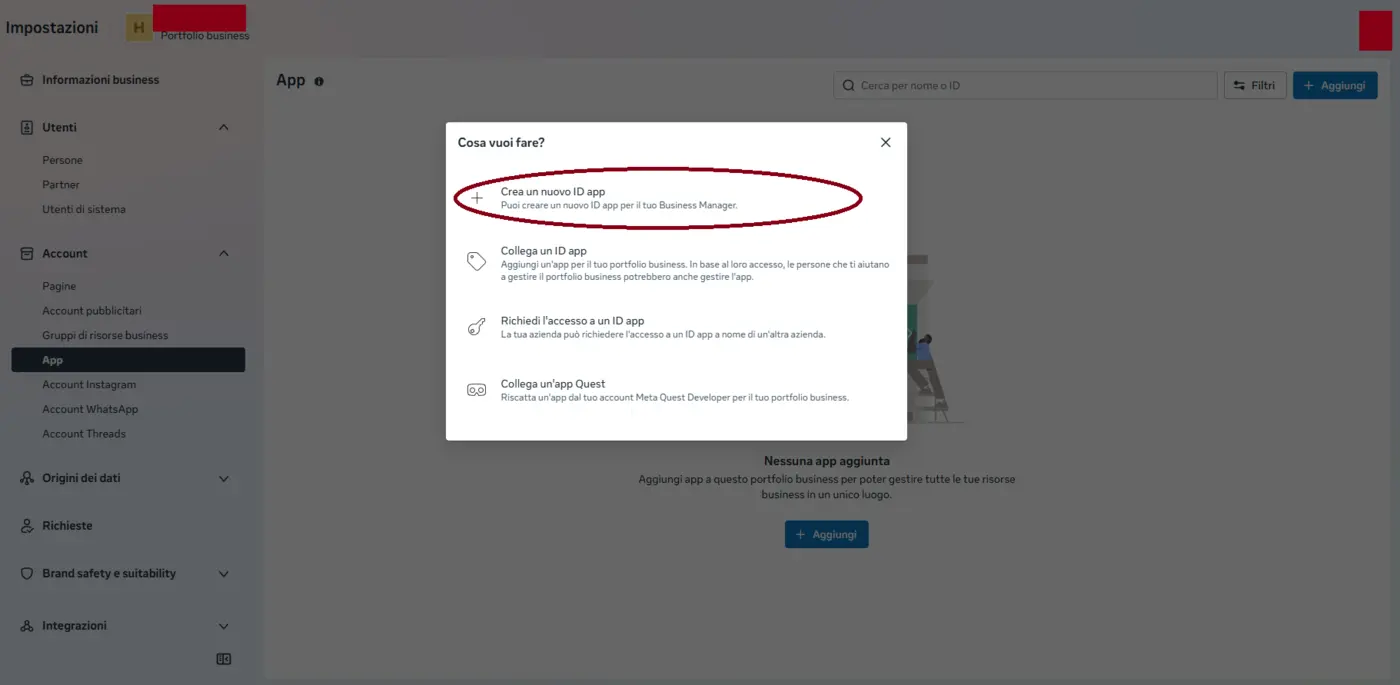
- Go to Business settings → Accounts → Apps → Add → "Create a new app ID".
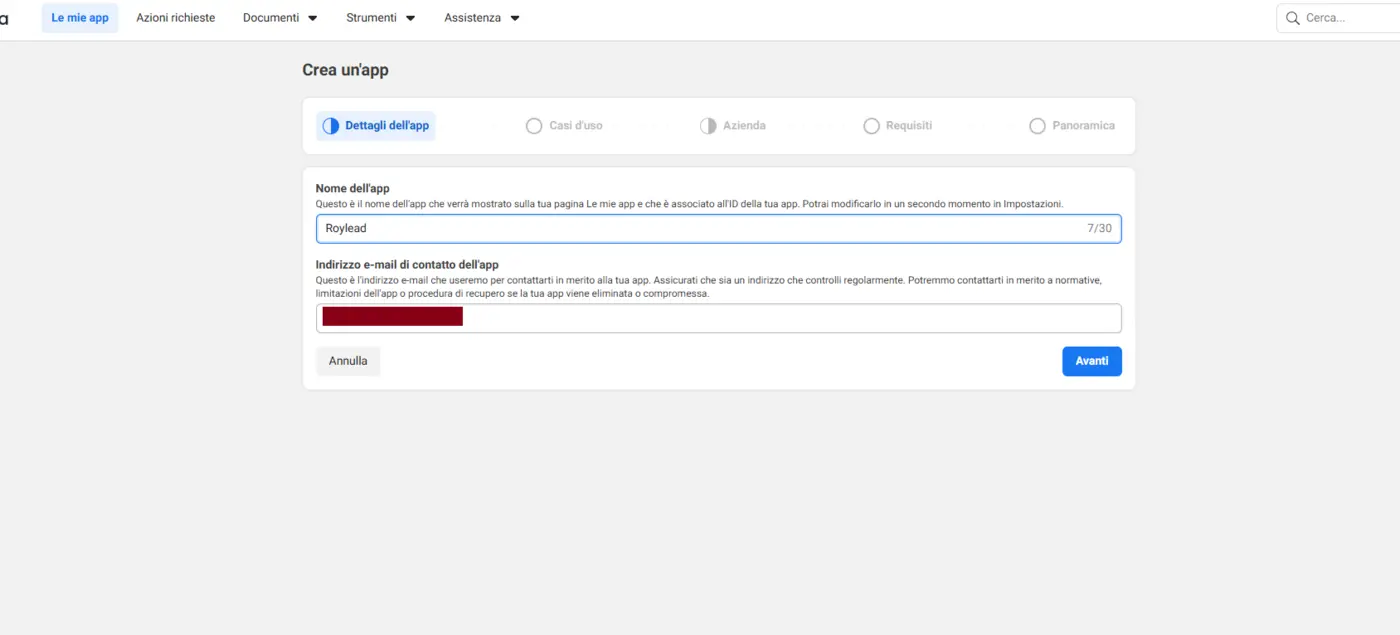
- App name: e.g.
RoyLead Sync(the contact email is already yours).
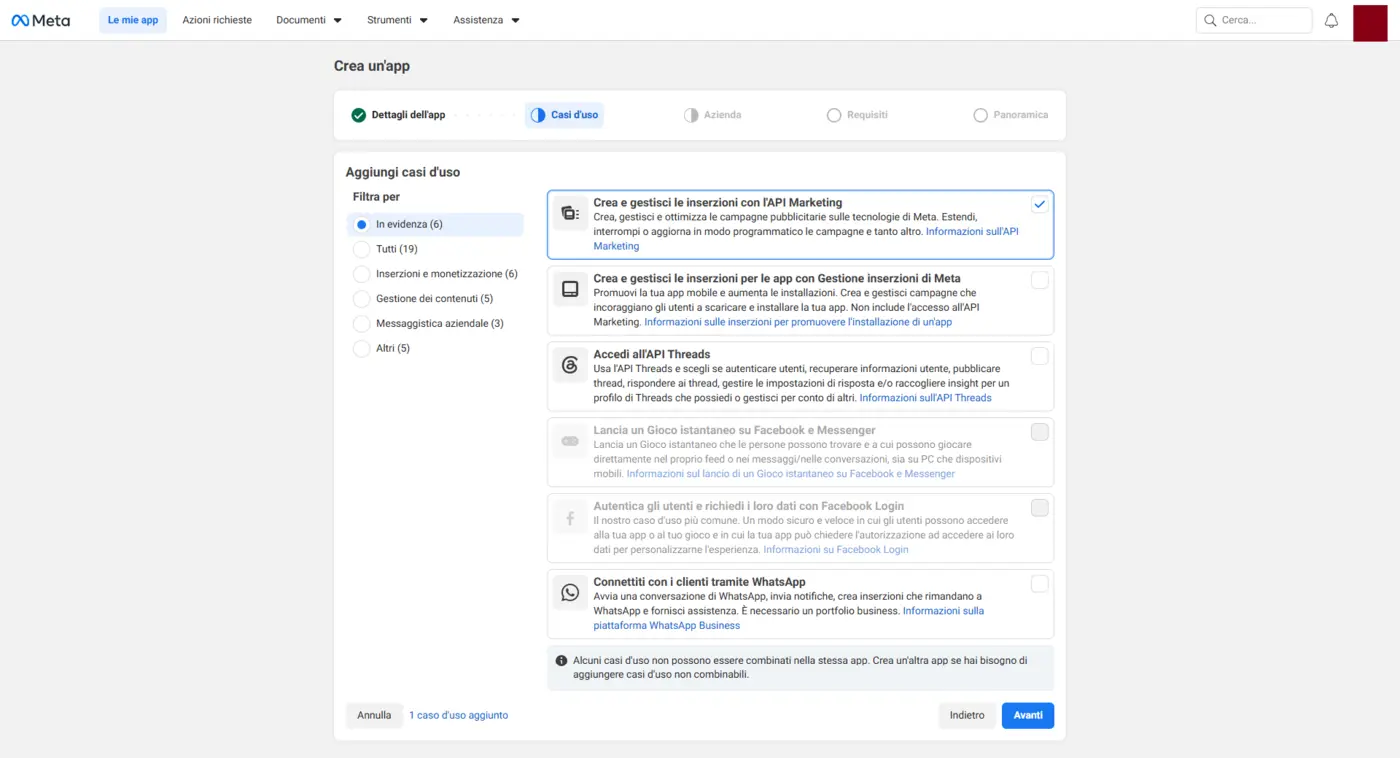
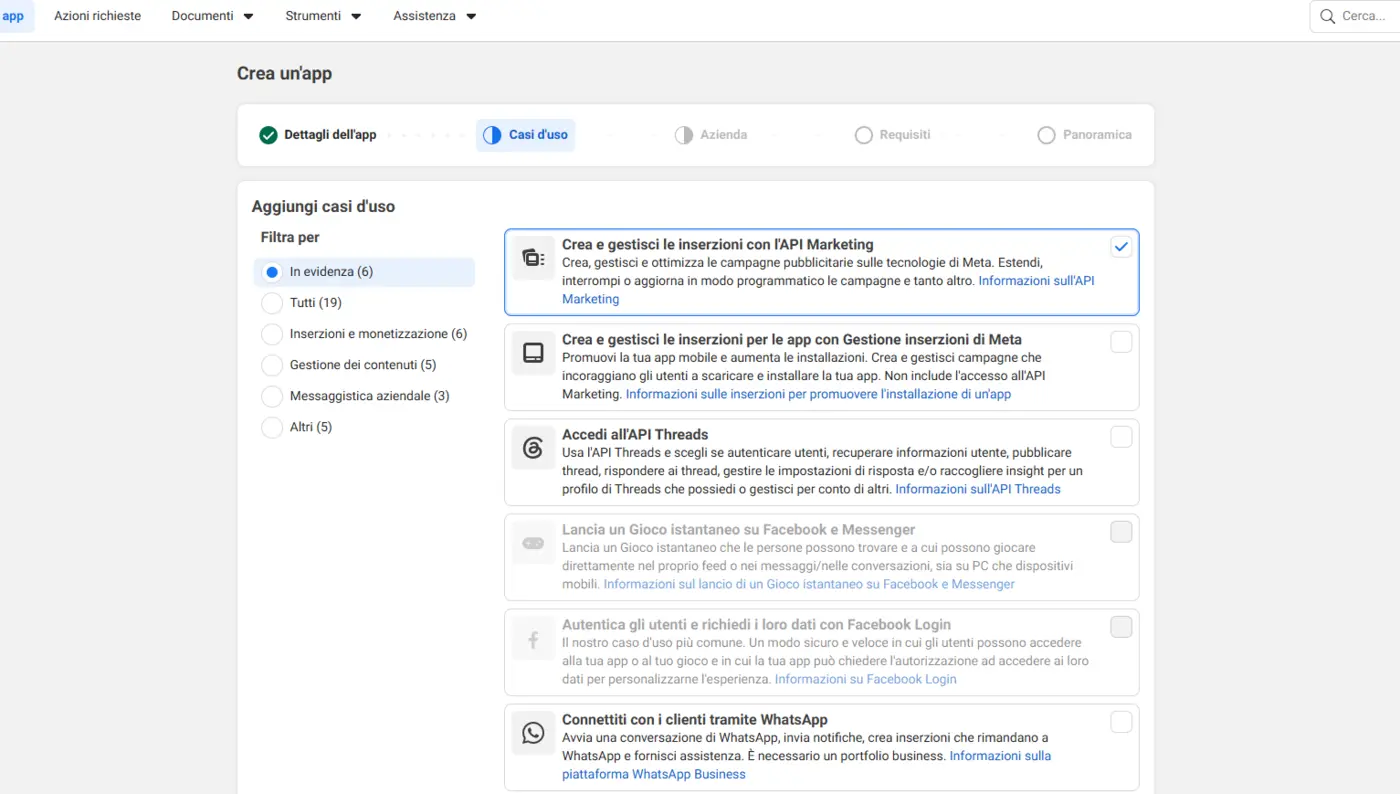
- Use cases: leave "Create and manage ads with the Marketing API" selected (it's the first option, checked by default).
- Business: link the app to your business portfolio, so it belongs to the right business.
- Review the Overview and click Create app. The Marketing API is already included thanks to the use case you picked.
Link the app to the system user
Creating the app isn't enough: the system user must have a role on the app, otherwise the token's "Assign permissions" step comes up empty.
- Go to Accounts → Apps and select your app.
- Click Assign people.
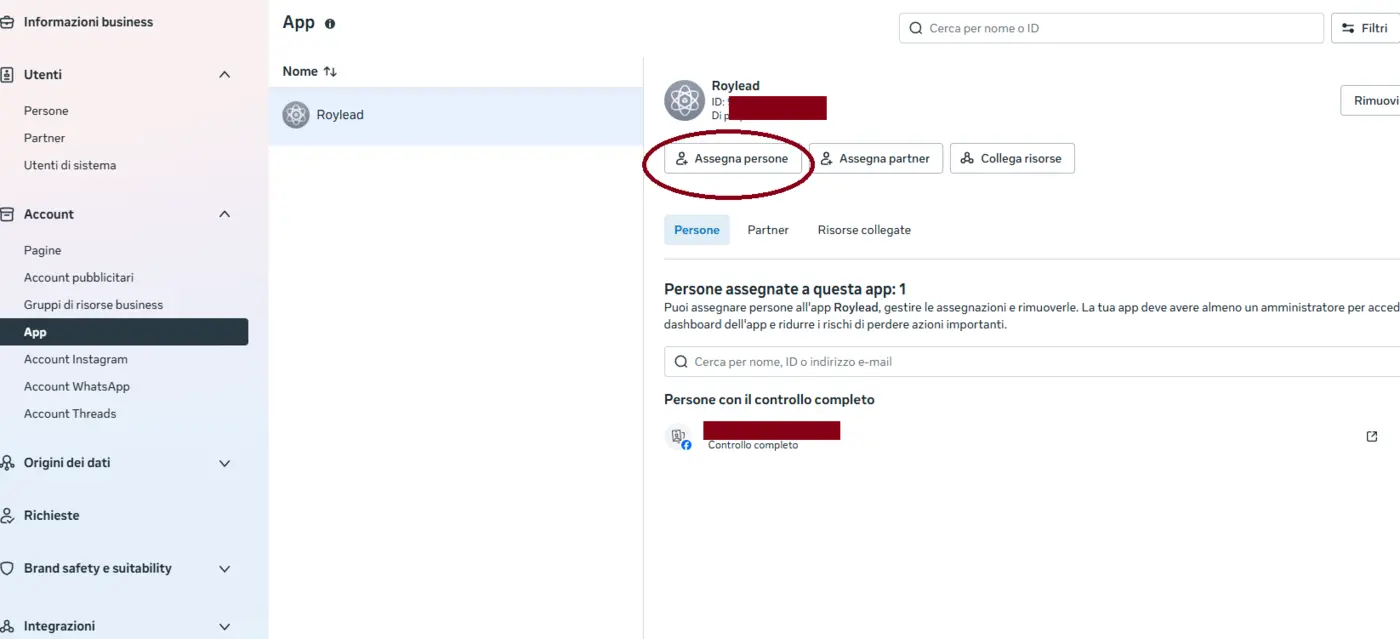
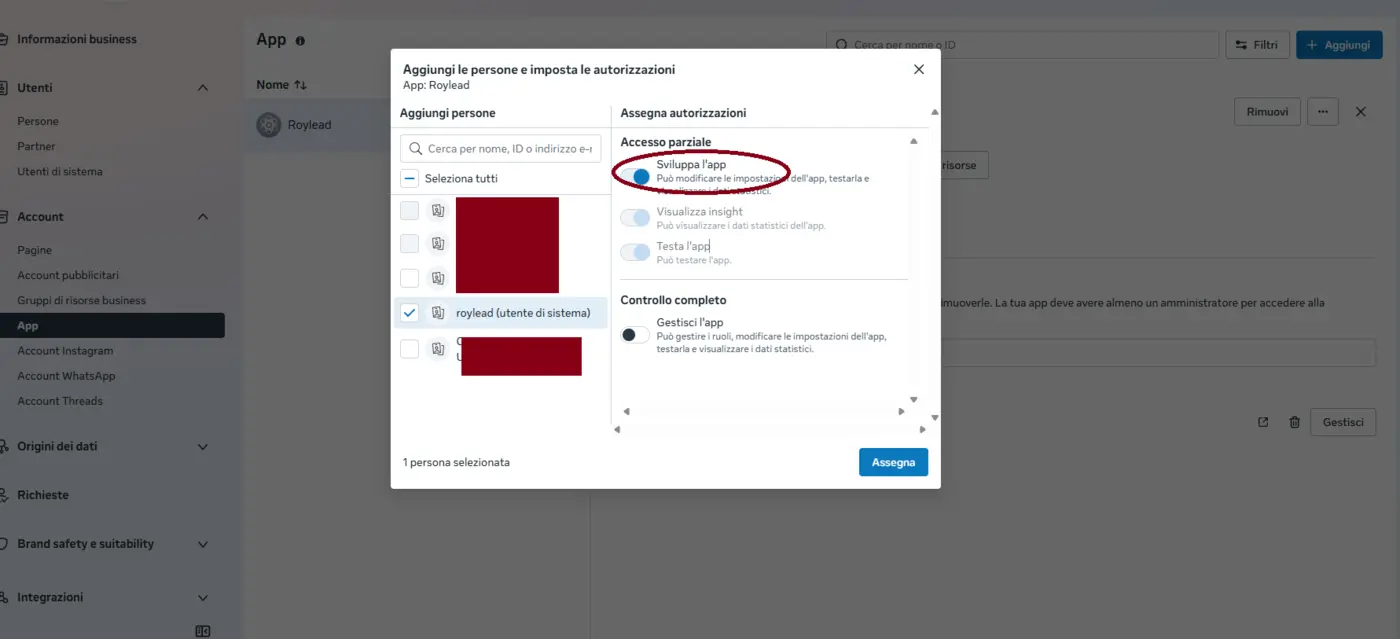
- Select the system user (e.g.
RoyLead Sync), turn on the "Develop app" toggle and click Assign. Leave "Manage app" off.
Publish the app (required to launch)
A freshly created app is in development mode: it reads data but can't create ads. The
launch stops halfway, on the creative, with "The ad creative was created by an app that is
in development mode" (1885183).
- On developers.facebook.com/apps open your app.
- App settings → Basic, fill in the two fields Meta requires to publish: Privacy Policy URL and Category. Save.
- In the left menu, Publish: switch the app from "Unpublished" to published.
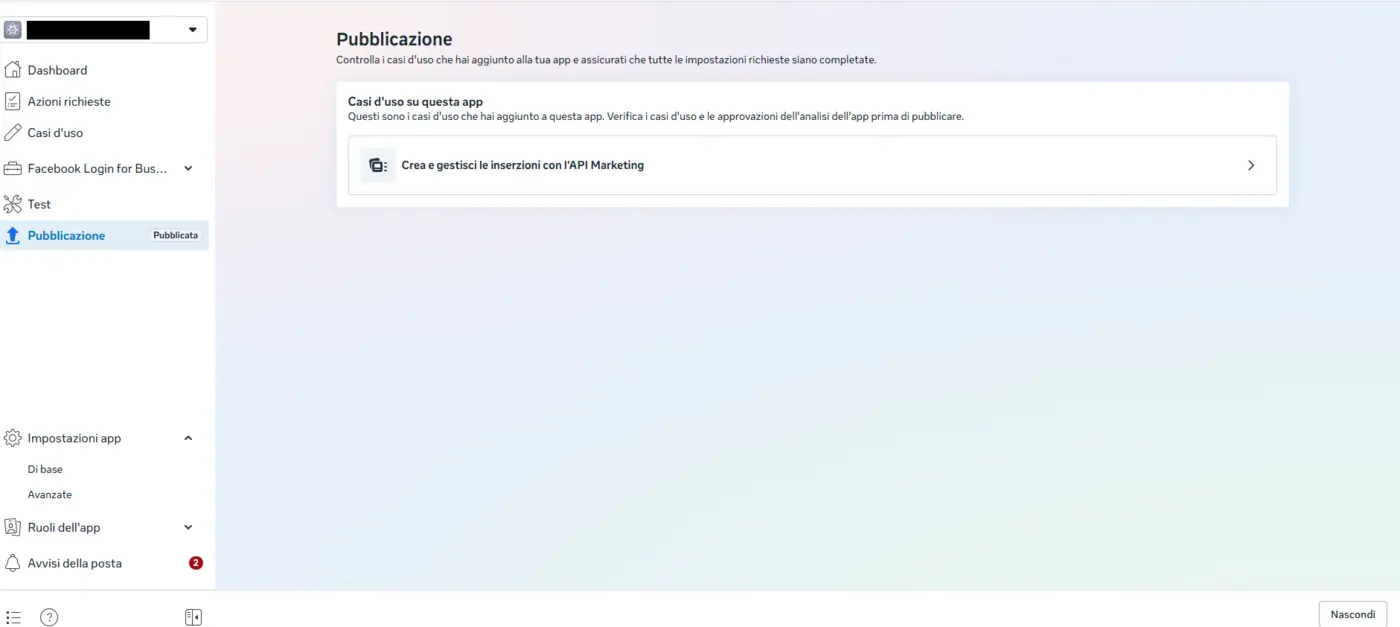
ℹ️ This is not Meta's App Review, which you don't need: it's only the switch that takes the app out of development mode.
Generate the token
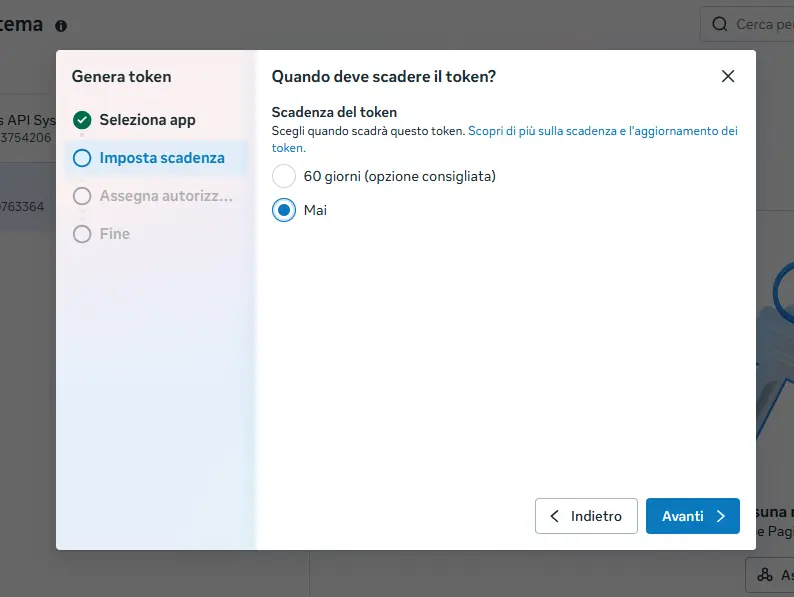
- Go back to Users → System users, select your user and click Generate new token.
- Select your app from the list (the one from Step 6).
- Token expiration: Never, for a permanent connection.
- Check these permissions:
| Permission | What it's for |
|---|---|
ads_management | create campaigns, ad sets, creatives and ads (includes reading costs) |
ads_read | spend, clicks and impressions for ROI and ROAS |
pages_show_list | see the Page that sends the ads |
pages_read_engagement | read the Page's data (without it the launch fails with error #100) |
pages_manage_ads | publish ads on behalf of the Page and link the Instagram account |
business_management | discover which ad accounts are assigned to the token |
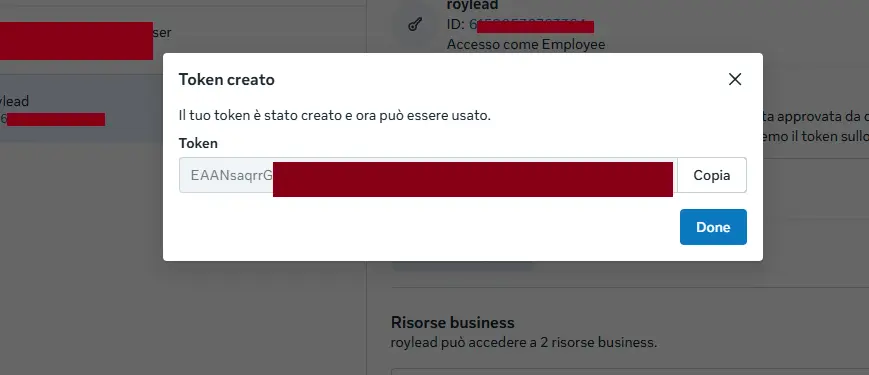
- Click Generate token and copy it right away.
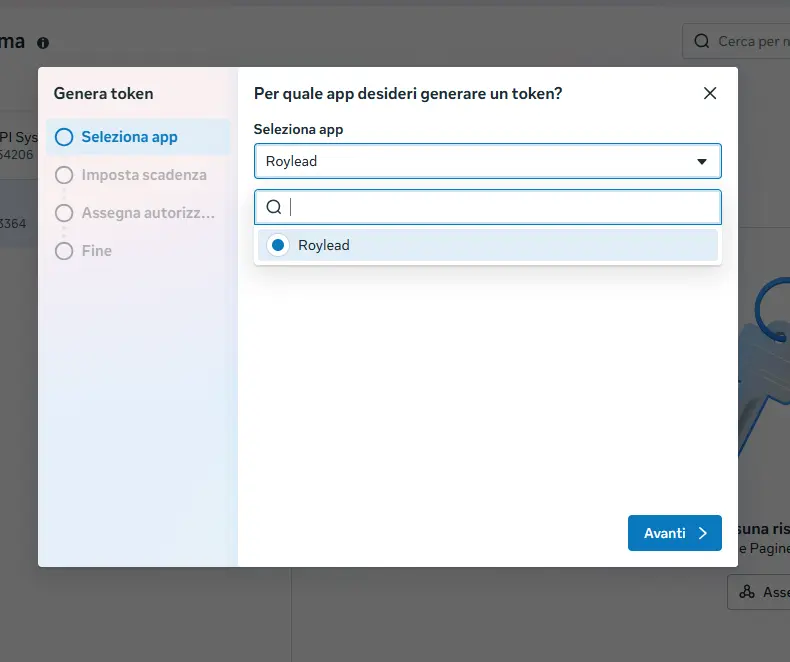
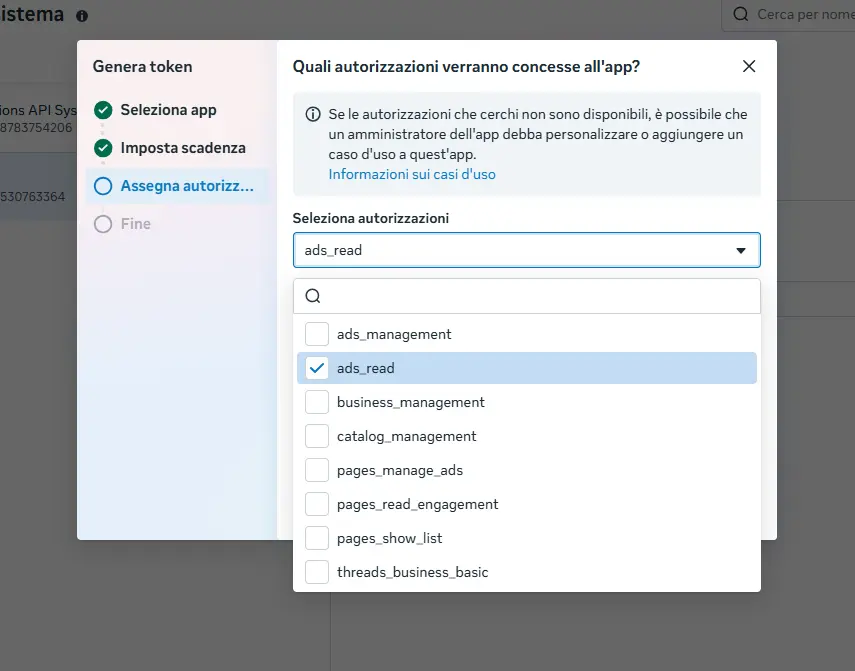
⚠️ If the "Assign permissions" step shows "No permissions available", the app isn't linked to the system user: complete Step 6 and try again.
🔒 Meta shows the token only once. Losing it is no problem: generate another one and paste it into RoyLead again.
Paste the token into RoyLead
- Open your team's Ad Accounts tab in RoyLead.
- Click Connect account and choose "Meta · connect the whole Business Manager".
- Paste the token and confirm.
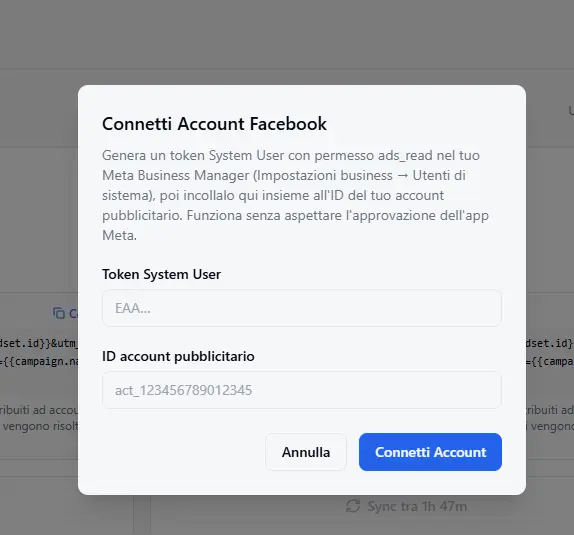
RoyLead verifies the token with Meta right away, discovers every ad account assigned to that token, pulls each account's name and currency automatically and connects them. At the end it tells you how many accounts are new and how many were updated.
ℹ️ You're never asked for an account ID: if an account doesn't show up, it isn't assigned to the system user (back to Step 3).
Import your pixels into the registry
In the campaign screen, the Pixel dropdown only lists pixels tied to that ad account. A pixel added by hand in the registry isn't tied to any account, so the dropdown stays empty and the launch is blocked.
- Open the Pixels section of RoyLead.
- Click Import from Meta.
- Pick the ad account you just connected and confirm.
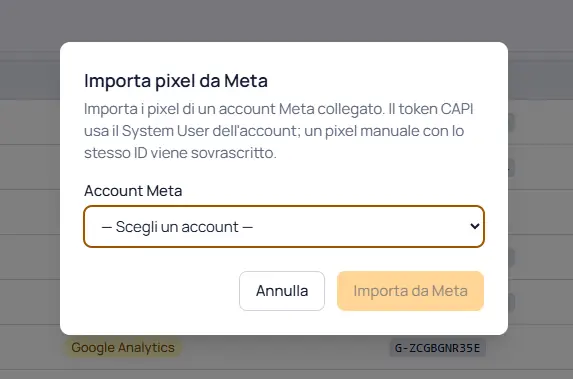
RoyLead imports that account's pixels and ties them to the connection. A manual pixel with the same ID is overwritten, not duplicated, and its CAPI token switches to the System User one.
Verify
On the connection:
- the account shows up in the list with the Connected status;
- the automatic sync runs every few hours; you can force it with the Sync button;
- after the first sync, spend and ROI appear in Analytics alongside your leads.
On the launch, in the campaign screen → Target accounts, for each account you must be able to pick:
- the sender Facebook Page (from Step 5);
- the Pixel (from Step 9), required for conversion objectives;
- the Beneficiary (EU/DSA).
Then Validate and Launch on Meta.
⚠️ From the dashboard the campaign is published active (or scheduled for the date and time you picked, in the ad account's timezone): it starts spending from launch. Only launches triggered by an agent over MCP are published paused.
Only the token can launch, "Log in with Facebook" can't
An account connected with "Log in with Facebook" (OAuth) stays read-only: it imports spend and ROI, but never shows up among a campaign's target accounts. The reason: RoyLead's app only holds cost-read permissions, not ads_management.
If you try anyway, you get the error "Invalid or non-launchable ad account (a System User token is required)". The fix is to connect the same account with the token: the connection is updated in place, without losing spend history.
ℹ️ One thing to keep in mind: the token is tied to the Meta app used to generate it. If Meta suspends that app, both the token and OAuth stop working. The token protects you from login-flow problems, not from an app suspension.
If the token expires or stops working
If you generate a token with an expiration and it expires, or you revoke it from Business Manager, RoyLead flags the account with an error status.
To fix it: reconnect the Business Manager with the new token from the same dialog as Step 8 (existing accounts are updated, not duplicated), or use the ⋯ → Edit credentials menu on the account card. No need to redo any Meta setup.
Troubleshooting
| What you see | Cause | Fix |
|---|---|---|
Invalid token | Wrong, expired or revoked token | Generate a new token, Step 7 |
| No account connected, or one missing | The account isn't assigned to the system user | Step 3 |
Permissions error (#200) at launch | ads_management missing, or the account is assigned read-only | Step 3 and Step 7 |
| Pixel permissions error at launch | The dataset isn't assigned to the system user | Step 4 |
| Page permissions error at launch | Page not assigned, or the "Ads" task missing | Step 5 (if it persists, Full control on the Page) |
| Empty Pixel dropdown in the campaign | The pixels aren't tied to that ad account | Step 9: Import from Meta |
| "Invalid or non-launchable ad account" | The account is connected via OAuth, not with the token | Reconnect it with the token, Step 8 |
| "No permissions available" | The app isn't linked to the system user | Step 6 |
"created by an app that is in development mode" (1885183) | The app isn't published | Step 6: publish the app |
| "Account already connected" | The account is already connected to the team | It's already there: no need to reconnect it |
| Wrong currency | — | The currency comes from Meta automatically and can't be edited |
💡 Generate the token with Never as expiration to avoid interruptions: it's the most convenient choice for continuous syncing.
Best practices
- 🔑 A system user dedicated to RoyLead: revoking the token only breaks that one integration.
- 🔒 Assign the system user only the ad accounts, pixels and Pages you actually want to use.
- 🧱 Least privilege: "Manage campaigns" rather than "Manage ad accounts", "Use events dataset" rather than "Manage events dataset".
- 🚨 Treat the token like a password: if you think it leaked, regenerate it in Business Manager and paste the new one.
Ready to put this into practice?
Create your RoyLead account and start in minutes.