Get your Brevo API key (customer emails from your domain)
Create a free Brevo account, generate an API key and paste it into your team. Your domains link up on their own and customer emails go out from your domain, in your site's name.
Updated on October 11, 2026
With the Brevo key, RoyLead sends your end customers the order emails (order confirmed, shipped with tracking) from your domain, in the name of the site they bought on: the sender is [email protected], RoyLead never appears. Everything runs on your Brevo account: emails are billed there, and the free plan covers 300 emails a day, enough for almost everyone.
The key belongs to the team: the owner or an admin adds it, and it covers every domain of the team.
Steps
-
Go to brevo.com and create a free account (or sign in).
-
Open Settings → SMTP & API → API keys and click Generate API key.
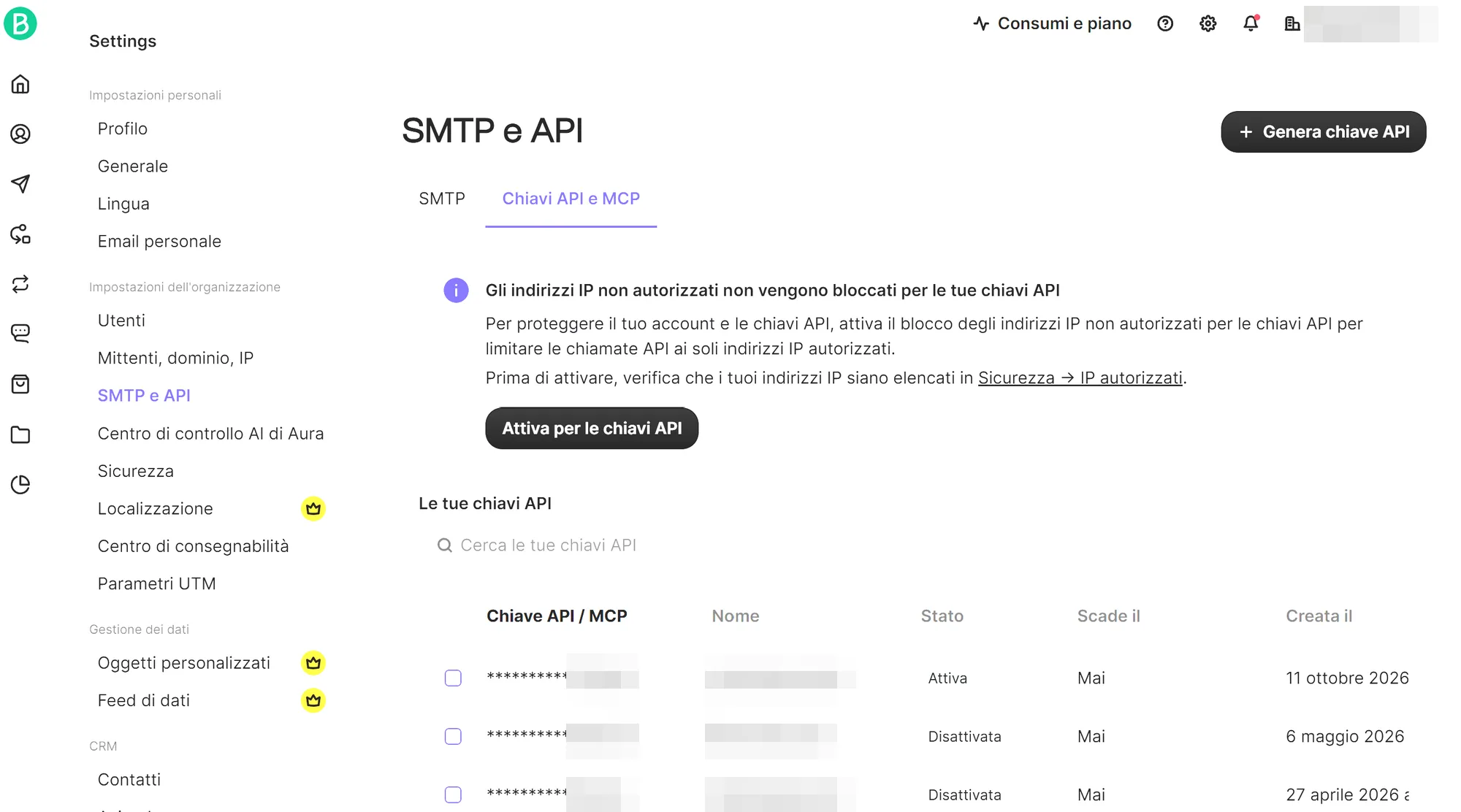
Brevo, Settings → SMTP & API: the Generate API key button Give it a name (e.g. "RoyLead"), leave Expiration: No expiration and press Generate.
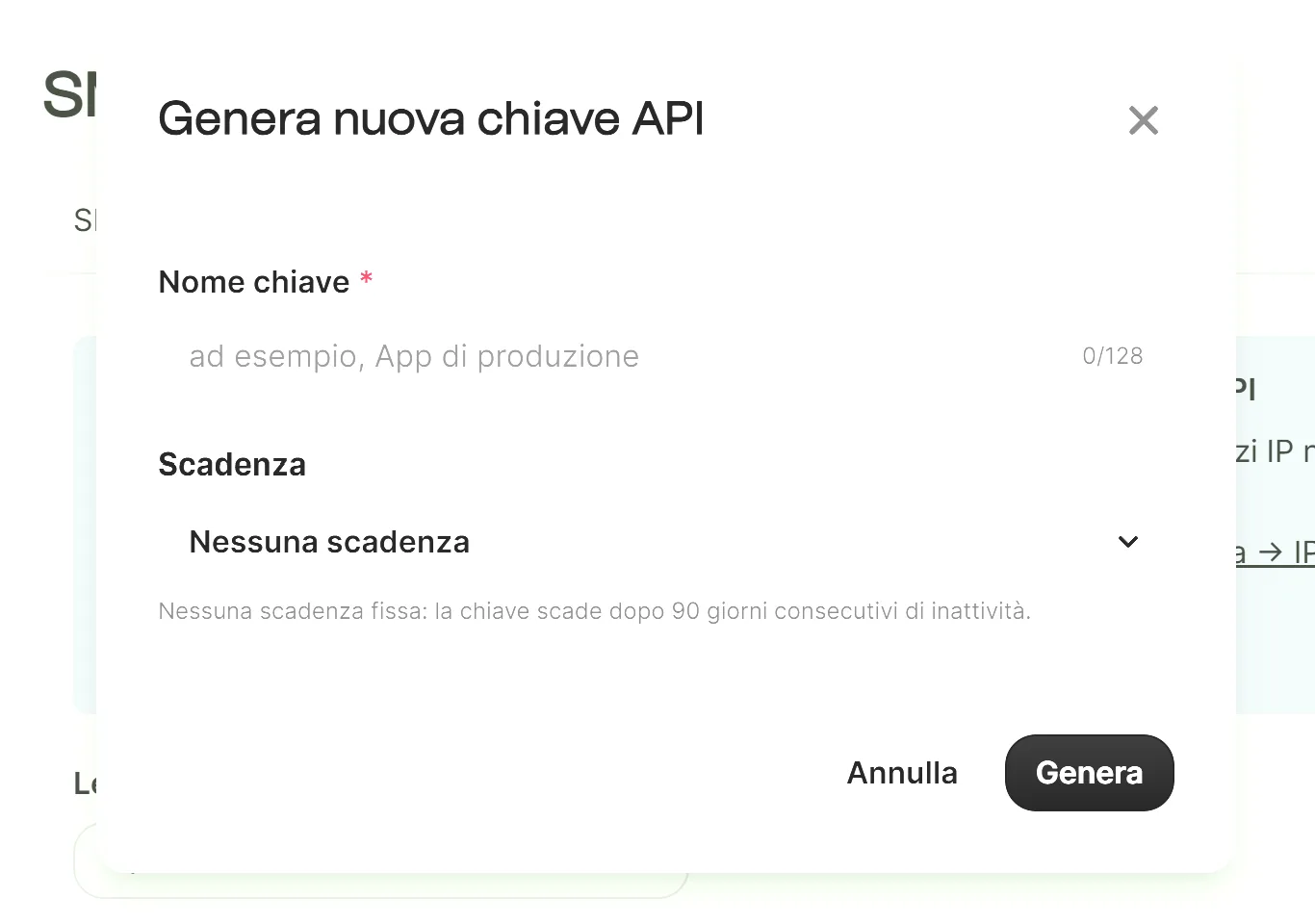
The Generate new API key window: name and expiration -
Copy the key: you only see it once.
-
In RoyLead open your team → Customers → Customer emails (Brevo), paste the key and press Save. RoyLead tests it on Brevo before saving.
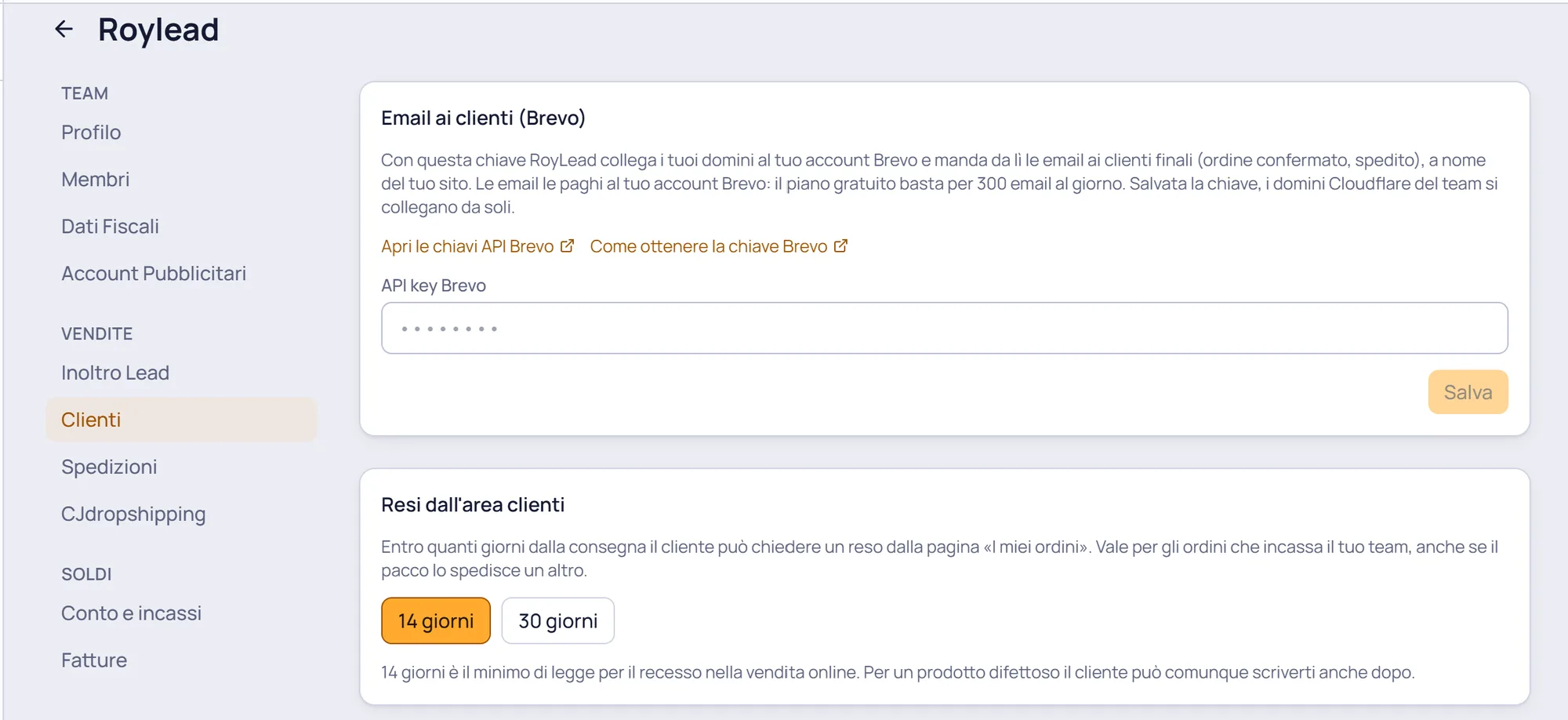
Team → Customers: the Customer emails (Brevo) card where you paste the key
What happens next
- The team's Cloudflare domains link up on their own: RoyLead registers each domain on your Brevo account, writes the DNS records in the Cloudflare zone and asks for verification. On the Domains page the Email column moves from "Verifying" to "Email on", usually within minutes. Other domains (WordPress, DNS elsewhere) turn to "DNS records to add": see the note at the bottom.
- Domains you import later link up as soon as they're imported.
- If a domain stays on "Email off", hover the badge to read why and press Retry.
- They are notifications only: sent from
noreply@, the customer cannot reply. To see the order or ask for a return they use the "My orders" page. - What customers receive, the "My orders" page and return requests: Customer emails, the "My orders" area and returns ↗.
⏳ Brevo switches off on its own a key nobody uses for 90 days in a row. If the team goes that long without orders and emails stop going out, generate a new key and paste it in place of the old one.
💡 The key is stored encrypted and never shown again (only the last digits). To change it, generate a new key on Brevo and paste it over the old one. If you remove it, customer emails stop going out.
⚠️ On domains outside Cloudflare (WordPress, or DNS managed elsewhere) you add the DNS records yourself: in Domains, Email column, the "DNS records to add" badge opens the list to copy into the domain's panel, then press "I've added the records, verify". On WordPress sites the "My orders" page is shown by the RoyLead plugin: keep it updated to the latest version.
Ready to put this into practice?
Create your RoyLead account and start in minutes.