How to connect a new domain
Import your domain from Cloudflare and set it up to publish landing pages and collect leads on your own address.
Updated on August 3, 2026
Connecting your own domain to RoyLead lets you publish landing pages and collect leads on your custom address (e.g. yourname.com). More professional, more visitor trust, more valid leads.
💡 Time required: ~2 minutes, if the domain is already on Cloudflare.
Before you start
You'll need:
- A domain already on Cloudflare: its nameservers point to Cloudflare and the zone is in your account. Not there yet? Start with Adding a domain to Cloudflare ↗.
- Your Cloudflare API token saved in RoyLead (Settings → Cloudflare). How to create it: Create the Cloudflare API token ↗.
ℹ️ RoyLead only imports zones from your own Cloudflare account, plus subdomains of those zones. It's a safety rule, not a limitation: your landing pages are published on those hostnames, so the account has to be yours.
💡 Don't have a domain yet? Add domain → Register Domain takes you to Namecheap, where you can register one in minutes. Then move it to Cloudflare and come back here.
Import from Cloudflare
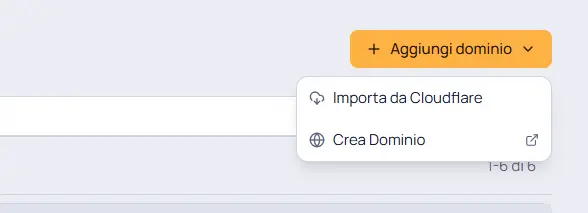
- Click Add domain → Import from Cloudflare.
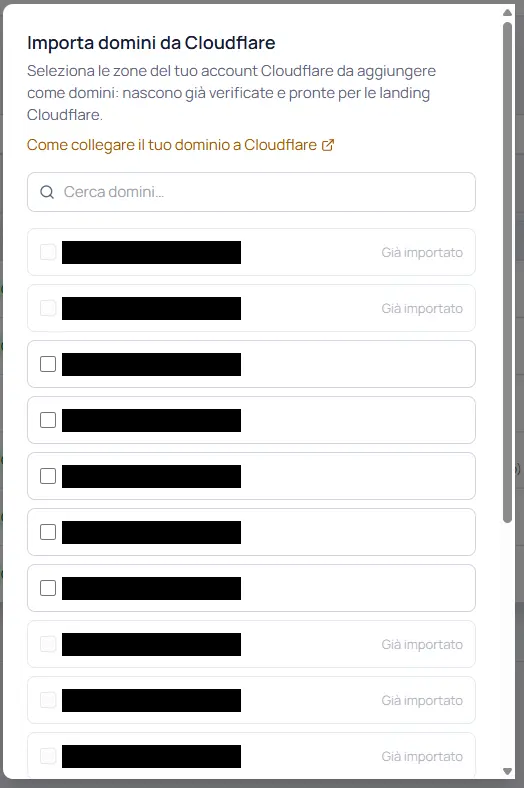
- The dialog lists the zones on your Cloudflare account. Use the search box if you have many.
- Already imported — the domain is already in RoyLead: look for it in the list instead of adding it again.
- Not active — the zone exists on Cloudflare but its nameservers haven't propagated yet. You can import it anyway.
- Tick the domains you want and confirm with Import.
If you see "First configure your Cloudflare API token", the token is missing or no longer valid: click Go to Settings → Cloudflare, save it, then reopen this dialog.
(Optional) Add a subdomain
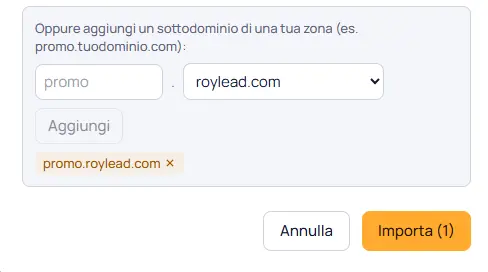
At the bottom of the same dialog: Or add a subdomain of one of your zones. Pick the zone, type the prefix (e.g. promo for promo.yourdomain.com) and click Add.
Useful for keeping separate verticals or campaigns on the same domain. The prefix takes lowercase letters, numbers and hyphens — dots if you want more than one level.
What you get straight away
An imported domain arrives ready to use, with no extra steps:
- Active — it already accepts traffic. There's no ownership verification to do: being a zone on your Cloudflare account is the proof.
- Site Type: HTML / Custom — ready for landing pages published on Cloudflare Workers.
- Assigned to you — clicks and leads on this domain are attributed to your account.
Check the Cloudflare badge
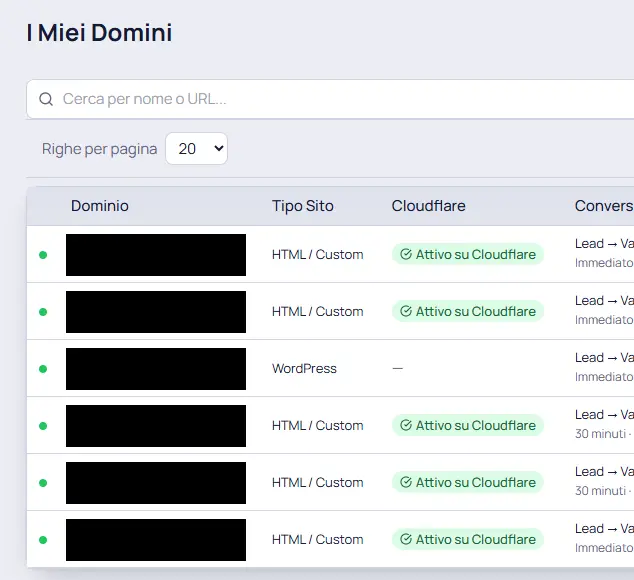
In the list, the Cloudflare column tells you whether publishing will work:
- Active on Cloudflare — all good, you can publish.
- Propagating — the zone isn't active yet: the nameservers haven't propagated. Publishing starts working on its own as soon as they do (usually minutes, up to 48 hours in the worst case).
- Not verifiable — there's no matching zone on the Cloudflare account of the user the domain is assigned to: the zone was removed, or the domain was imported with a different account.
- Can't verify — the domain isn't assigned to anyone, or the assigned user hasn't saved a valid Cloudflare token.
Site type, only if you're on WordPress
Open the domain and set Site Type:
- WordPress — install the RoyLead plugin on your site (Plugins → Add new → Upload plugin), activate it and enter your API key. Landing pages sync automatically.
- HTML / Custom — your own custom site, including HTML landings published on Cloudflare Workers. This is what imported domains already use.
ℹ️ Neither type needs a CNAME record.
(Admins) Who receives the leads
Assigned To decides who gets the clicks and leads from this domain. On an imported domain it's whoever imported it.
⚠️ The Cloudflare badge is read using the assigned user's token. If you reassign a domain to someone who hasn't saved their own token, the status becomes unverifiable — the domain keeps working, you just stop seeing its zone status.
(Recommended) The settings that matter
In the domain settings you'll also find:
- Google Maps API Key — address autocomplete when a visitor types in the form. Optional, but it improves the quality of the data you collect. Full procedure in the Google Maps API Key guide.
- Conversion Event, Event Value and Conversion Delay — what gets sent to the pixels and when.
- Require cookie consent and Sensitive category — consent banner and, for Meta-restricted verticals, blocking personal data at the source.
- Linked Pixels — which pixels receive this domain's events.
Turning a domain off
Deactivate stops traffic (clicks and leads) and also switches off the landing pages linked to it. You can reactivate the domain whenever you like, but the landings go back on one at a time.
Troubleshooting
| What you see | Cause | Fix |
|---|---|---|
| "First configure your Cloudflare API token" | No token saved, or no longer valid | Settings → Cloudflare, save the token, reopen the dialog |
| "No zones found in your Cloudflare account" | The token belongs to an account with no zones, or lacks read permission on zones | Check the token following the Cloudflare token guide ↗ |
| Your domain isn't in the list | It isn't a zone on your account, nor a subdomain of one | Move the domain to Cloudflare first, then import it |
| Badge stays on "Propagating" | Nameservers not propagated yet | Wait and reload: it resolves on its own, up to 48 hours |
| Badge "Not verifiable" / "Can't verify" | Zone removed, imported with another member's Cloudflare, or the assignee has no token | Reassign the domain, or re-import it from the right account |
| "Invalid prefix" while adding a subdomain | Uppercase letters or invalid characters | Lowercase letters, numbers and hyphens only (dots for multiple levels) |
💡 Have several domains? Import them all in one go: tick them together in the dialog. In RoyLead every domain is then managed independently.
Need help?
If the badge stays on "Propagating" after 48 hours, check on Cloudflare that the zone is Active and that your registrar really points to Cloudflare's nameservers. If in doubt, contact support.
Ready to put this into practice?
Create your RoyLead account and start in minutes.